Watch: the web terminal
Opening shells on a node or container, tabs and split panes, and pop-out windows. The written steps are below.
Overview
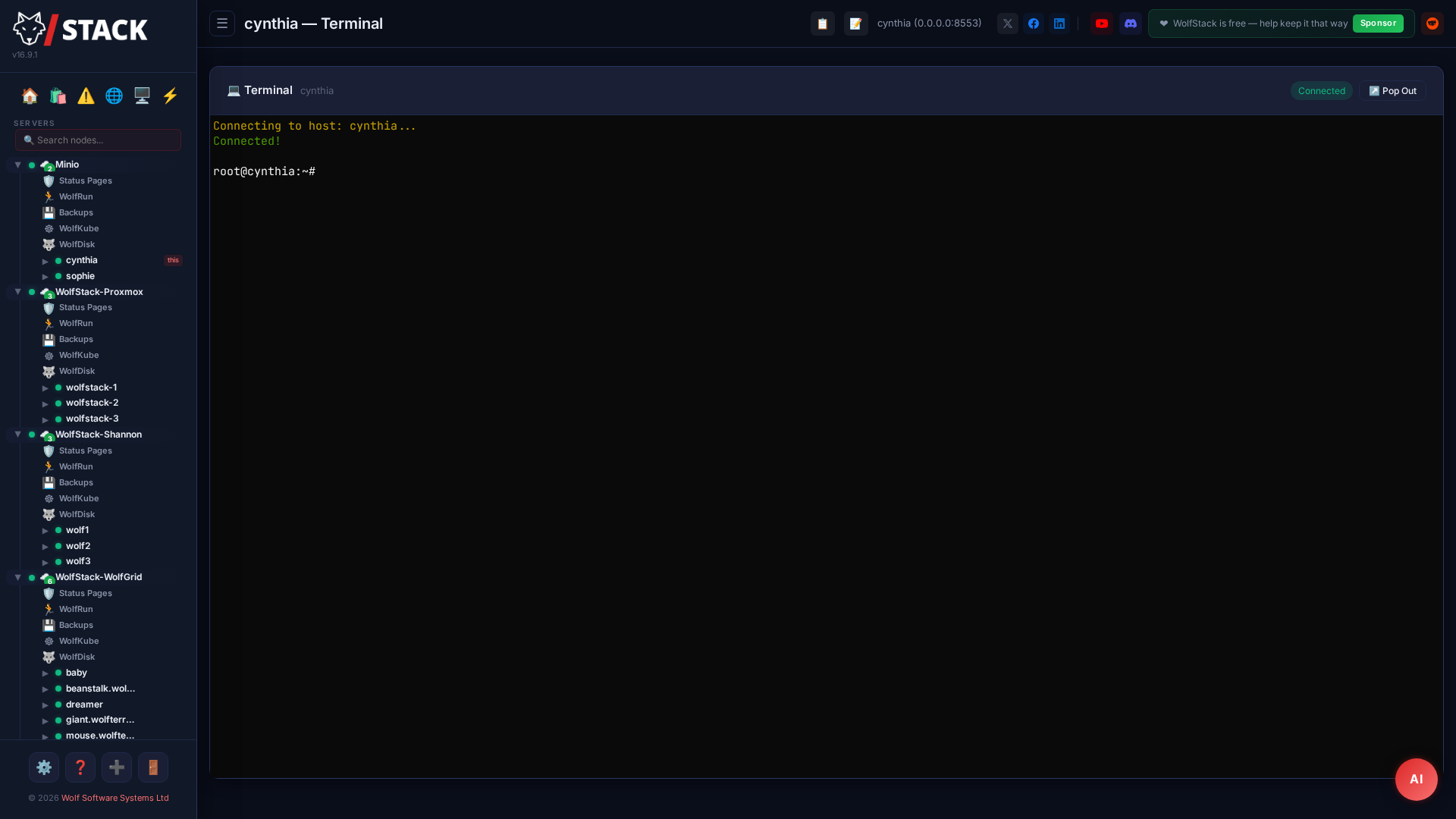
WolfStack includes a full web-based terminal that lets you open SSH sessions to any node or container directly from the dashboard. No separate SSH client needed.
What you can do
- Open a shell on any managed node
- Connect to LXC containers (via
lxc-attach) - Connect to Docker containers (attempts
bash,sh,ashin sequence) - Full terminal emulation with colour support
- Copy & paste support
- Tabs & split panes — one tab per session, and split any tab into side-by-side or stacked panes (Alt+\ vertical, Alt+- horizontal) to watch several shells at once
- Pop-out windows — detach any tab into its own standalone browser window and keep working in the dashboard
- Fleet console — open shells to several cluster nodes side by side from one screen, with remote nodes reached transparently through the node proxy
- Resizable terminal window
Opening a terminal
- On a node: click the node in the sidebar and choose Terminal — a root shell on the host opens in the browser.
- On a container: from the Docker or LXC list, click the Terminal action on the container’s row. WolfStack attaches to it directly (no SSH keys or exposed ports needed).
- Type as you would in any terminal. Copy with your usual shortcut; paste with Ctrl+Shift+V (or right-click).
Working with several shells at once
- Each session opens in its own tab — click + to add more.
- Split the current tab into panes with Alt+\ (side by side) or Alt+- (stacked) to watch two shells together.
- Pop out a tab into its own window with the detach icon, so a long-running command keeps running while you use the rest of the dashboard.
- For fleet-wide work, open the Fleet console to bring up shells on several nodes side by side — remote nodes are reached through the node proxy, no direct SSH required.