


Watch: the file manager
Browsing, editing with the built-in editor, and uploading or downloading files on any node. The written steps are below.
Overview
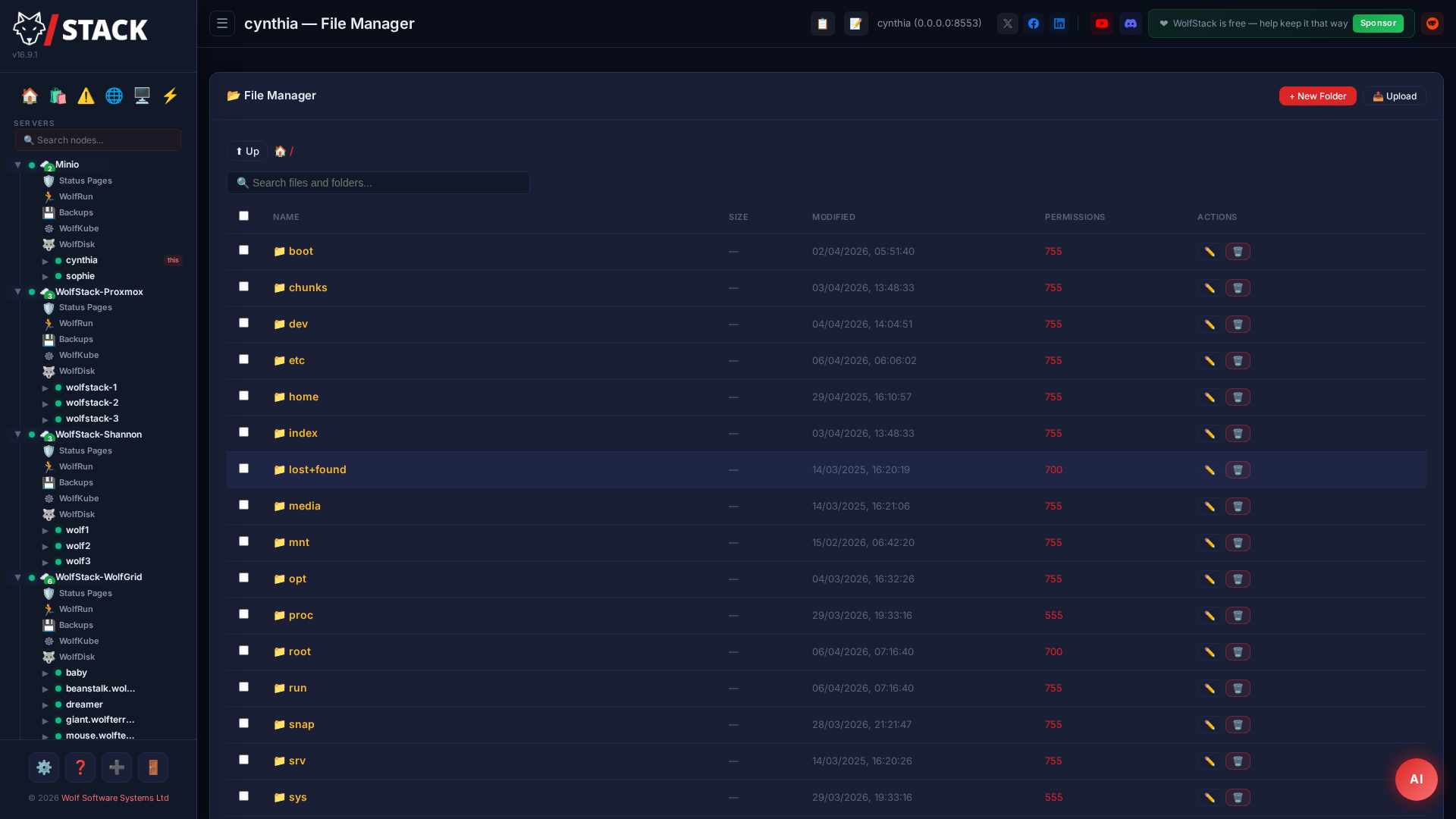
The built-in File Manager lets you browse the filesystem of any node in your cluster directly from the web dashboard. Navigate directories, view and edit files, upload new files, and download existing ones.
What you can do
- Browse any directory on any managed node
- View file contents with syntax highlighting
- Edit files in-place with a built-in code editor
- Upload files via drag & drop
- Download files from remote nodes
- Delete, rename, and create files and directories
- View file permissions, sizes, and modification times
Editing a file
- Open the node in the sidebar and choose File Manager.
- Navigate to the folder using the breadcrumb bar or by clicking directory names. Type a path directly into the breadcrumb to jump straight there.
- Click a file to open it in the editor. Text files open with syntax highlighting; binary files offer a download instead.
- Make your changes and click Save — the file is written back on the node with its original ownership and permissions preserved.
Uploading and downloading
- Browse to the destination folder.
- To upload: drag files from your computer onto the file list, or click Upload and pick them. A progress bar shows each transfer.
- To download: click the download icon on any file’s row.
- Use the New Folder and New File buttons to create items, and the row actions to rename or delete.
The File Manager also works inside a container — open the container’s Browse Files action to edit its filesystem without dropping to a shell.