Watch: WolfAgents
Drafting an agent and binding it to a chat channel. The written steps are below.
🐺 WolfAgents
Named AI agents that live in your cluster, each with its own personality, persistent memory, and tool allowlist. Talk to them from the dashboard, a Discord channel, a Telegram chat, or WhatsApp — they remember the conversation across restarts and can act on infrastructure within the permissions you grant.
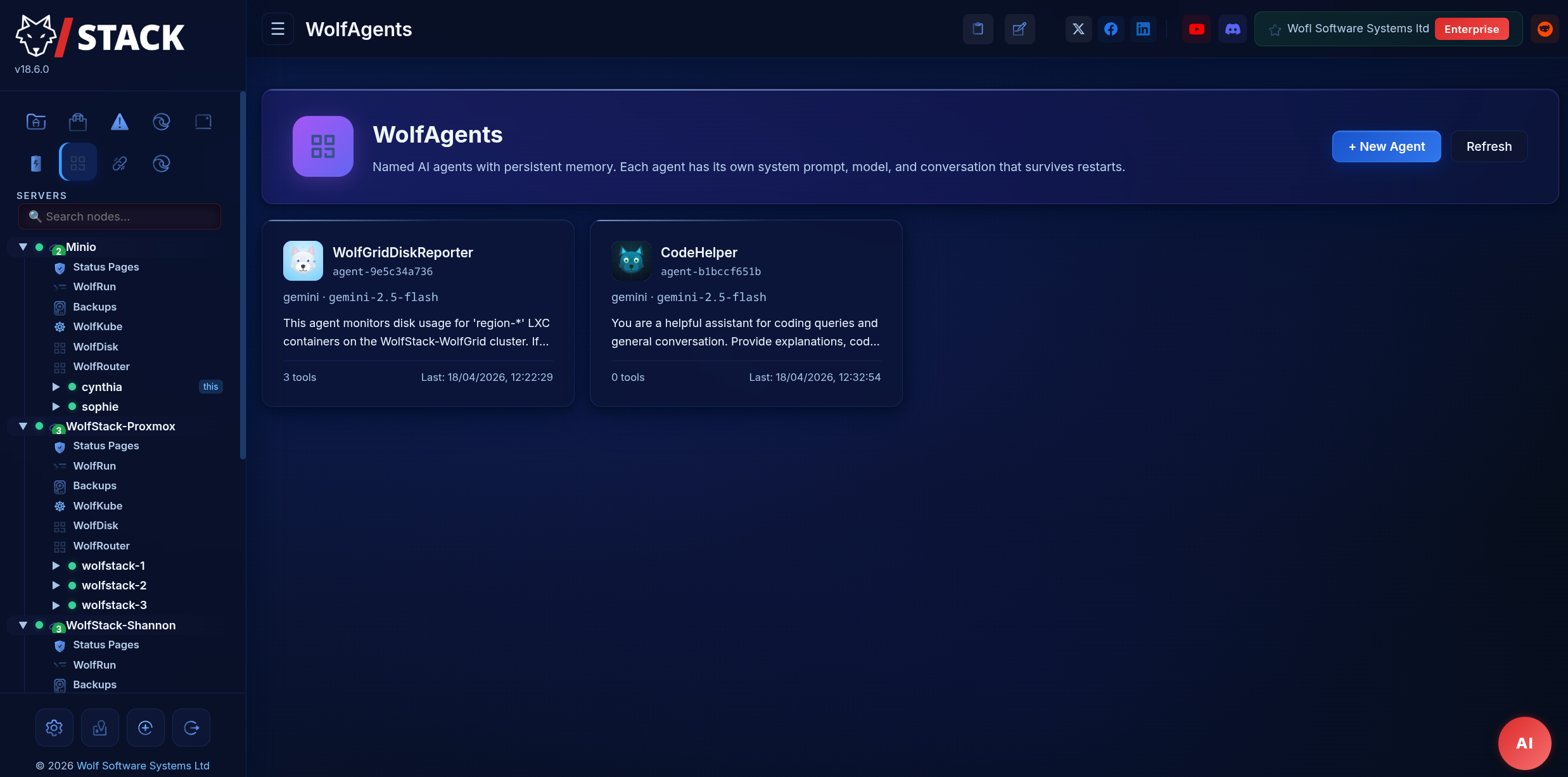
If a single AI chatbot is a shop assistant, WolfAgents is your ops team. Pair one agent with your alerts channel so it triages incidents; pair another with a private Telegram DM so it answers "is the cluster healthy?" over morning coffee; let a third run scheduled diagnostics via WolfFlow and DM you the summary. Each one keeps its own memory and only the tools you gave it.
Why Named Agents
WolfStack already had a single global AI assistant. That worked fine for one-shot questions but broke down the moment you wanted:
- A persistent thread that remembers yesterday's incident when today's alert fires.
- Different personalities for different audiences — concise-and-technical for the oncall channel, conversational-and-teachy for a help desk, incident-commander for page-outs.
- Scoped permissions — this agent can restart containers, that one can only read metrics.
- Multi-channel access — the same agent reachable from the dashboard, Discord, and a Twilio WhatsApp number.
WolfAgents gives you all four in one surface.
Anatomy of an Agent
Each agent is a persisted record in /etc/wolfstack/agents.json with:
- Name — how the agent is addressed in the UI and at the start of Discord/Telegram replies.
- Avatar — one of six bundled SVG cartoon wolves (Grey / Red / Arctic / Shadow / Cyber / Sunset) or a custom image you upload. Images are downscaled client-side to 128×128 and stored as data URLs on the agent record. Unset = a wolf is picked deterministically from the agent's id so you never get two agents that look identical by default.
- System prompt — the agent's role. The more specific, the better: "You are Spitfire, the on-call incident commander. Answer in one sentence. If asked to act, ask a clarifying question unless the intent is unambiguous" beats "You are a helpful assistant."
- Provider + model — inherited from Settings → AI Agent. One global configuration (Claude / Gemini / OpenRouter / local Ollama / LM Studio / vLLM) drives every agent, so you set credentials once and every agent uses them. No per-agent keys to rotate.
- Access level — ReadOnly, ReadWrite, ConfirmAll, or Trusted. Governs whether the agent can invoke mutating tools, whether destructive calls need operator approval, and whether it can touch confirm-gated paths. See Access Levels below.
- Target scope — allowlists of clusters, container glob patterns, hosts, filesystem paths, and API paths the agent can act on. Empty means "everywhere the access level permits"; specific entries tighten the blast radius.
- Memory window — rolling last-N-turns the agent sees on each reply. Default 40, bounded 4–4096. The file grows forever as an audit log; only the most recent turns feed the model.
- Allowed tools — the fixed catalogue of WolfStack operations this agent may invoke (see Tools below). Empty by default: new agents can chat but can't act until you deliberately grant specific tools.
- Channel bindings — optional Discord channel, Telegram chat, or WhatsApp number. Messages in bound channels route to this agent.
Draft an Agent from the Main AI Chat
You don't have to fill in the Edit Agent modal field-by-field. Open the main AI chat (the dashboard's global assistant) and say what you want:
"Build me an agent that scans thewolfgridcluster for containers matchingregion*, checks their disk usage, and emails me if any exceed 90%."
The chat detects the intent (build|create|make|new|set up|spin up|draft + the word "agent") and hits POST /api/agents/build. The backend feeds the configured LLM the full tool catalogue, the live list of clusters, the access-level and scope schemas, and your request — then returns a structured agent proposal. The chat renders it as an inline preview card:
- Editable name + system prompt (contenteditable, so you can tweak wording in place).
- Proposed access level.
- Chosen tool allowlist as coloured badges.
- Every populated scope axis (clusters, container patterns, hosts, paths, API paths, email recipients) listed one per line.
- Create agent and Dismiss buttons.
Nothing is persisted until you click Create agent. The operator is always in the loop — the LLM proposes, you approve. If the draft picked the wrong tools or too-wide a scope, dismiss and rephrase, or open Edit Agent after creation to narrow it down.
Email as a First-Class Action
Agents can send email via the send_email tool when SMTP is configured (Settings → AI Agent → Email — the same setup that powers alerting). The tool takes a subject, a body (plain text or HTML), and an optional to (single address or an array); omitting to sends to the default alerting recipient.
The abuse vector — a prompt-injected agent emailing arbitrary addresses — is closed by the allowed_email_recipients scope on the agent:
- Empty (default) — the agent can only email the AiConfig default recipient. Safe even when Discord or WhatsApp surfaces the agent to external users.
- Exact address (e.g.
paul@wolf.uk.com) — matches that address only, case-insensitive. - Domain suffix (e.g.
@wolf.uk.com) — matches any local-part at that domain. Good for "this agent can email anyone on our team."
Typical pattern: give a triage agent send_email with allowed_email_recipients=["@wolf.uk.com"], so it can escalate to whichever on-call engineer it thinks best but cannot DM attacker@evil.com.
Agents on the Web — web_fetch, web_render, semantic_search
Three safe-class tools let agents look outward and backward:
web_fetch— plain HTTP(S) fetch viareqwestwith server-side HTML-to-text stripping. Bounded to 512 KB and 10 seconds. Before the request leaves the host we pre-resolve the URL and refuse loopback, RFC1918, link-local, CGNAT, and IPv6 ULA / link-local addresses — blocks SSRF attempts where a prompt-injected agent tries to scrape your internal admin panels.web_render— headless Chromium fallback for JavaScript-heavy pages thatweb_fetchreturns empty on. Auto-detectschromium/chromium-browser/google-chrome/chromeon PATH and returns a clean "install chromium" error if none is present. Same SSRF + size guards, 30-second timeout.semantic_search— BM25 across past agent memory files, alerting event history, and tool-call audit logs. Caller picks which of the three corpora to search. Returns top-N matches ranked by TF-IDF scoring, each with source (memory/audit/alerts), path, and a 400-character snippet. No embedding-model dependency; the tool surface is stable so when a real vector index lands later, callers don't notice.
All three are classified Safe, so a ReadOnly agent can use them once ticked — no confirmation queue, no scope friction beyond the SSRF allowlist for URLs.
Access Levels
Every agent has one of four access levels. This is the first check every tool call passes through — before the per-agent allowlist, before target scope, before anything else. It sets the default disposition of mutating operations.
| Level | Read tools | Safe writes | Destructive writes |
|---|---|---|---|
| ReadOnly | ✓ | Denied | Denied |
| ReadWrite | ✓ | ✓ | Queued for operator approval |
| ConfirmAll | ✓ | Queued for operator approval | Queued for operator approval |
| Trusted | ✓ | ✓ | ✓ (safety denylist still enforced) |
"Safe writes" are things like restarting a named container or writing a file under an allowed path. "Destructive writes" are arbitrary shell execution, filesystem changes outside allowed paths, or anything the tool registry flags as Danger::Destructive.
ReadWrite is the right default for most automation agents. ConfirmAll is the right default for an agent reachable from a public channel (Discord / WhatsApp) where prompt injection is a realistic risk. Trusted should be reserved for agents you run yourself under known-good prompts, because even "let's just restart one container" becomes "let's drop the whole cluster" with the wrong phrasing.
Target Scope
Access level decides what kind of action is allowed; target scope decides where it can happen. Five independent allowlists, all comma-separated in the UI:
- Allowed clusters — cluster names the agent may touch (e.g.
staging, edge). Empty means all clusters it can reach. - Allowed container patterns — glob patterns matched against container names (e.g.
regions-*, app-*). Honours*and?. An exec onregions-1passes; one ondb-primaryis rejected before the container is even resolved. - Allowed hosts — host/node IDs or hostnames where host-level commands (
exec_on_host,check_disk) may run. - Allowed paths — filesystem path prefixes the agent can read or write (e.g.
/home/wolfgrid1/assetcache, /var/log). Everything outside is denied. - Allowed API paths — path prefixes on the WolfStack REST API the agent may hit via the universal API tool. Keeps an agent granted API access from wandering into
/api/agents(managing other agents) or/api/settings. - Allowed email recipients — exact addresses or
@domainsuffixes thesend_emailtool can address. Empty = only the AiConfig default recipient. Domain suffixes let a triage agent email anyone on your team without naming every inbox.
Scope is additive with access level: a ReadOnly agent with every scope set to * still can't mutate anything; a Trusted agent with an empty container pattern list still can't exec on db-primary if the operator narrowed it to regions-*.
Cluster Context — Agents Understand WolfStack
Every turn, before the agent sees the user's message, the system prompt is augmented with two blocks:
- Embedded WolfStack knowledge base — a concise reference covering the concepts an agent needs to reason about the platform: what a cluster is, the container stack, networking primitives, storage backends, backup semantics. Ships in the binary so it survives offline.
- Live cluster snapshot — node list with online state, container inventory, recent alerts, and the agent's scope summary. Regenerated per turn, so a container that went offline 30 seconds ago shows up offline.
The result: a new agent can answer "what's the state of the cluster?" without burning tool calls on reconnaissance. It also means phrases like "restart all the region containers" resolve to actual names instead of asking the user to list them.
Confirmation Queue
When a mutating call's access level or tool classification says "needs approval", the tool call is not rejected — it's queued. The agent gets a synthetic tool result: "Queued as pending #42 for operator approval". The operator sees it on the agent's ⏳ Pending tab (red badge on the agent card when open items exist) and clicks ✓ or ✗.
- Approve → WolfStack runs the tool server-side, records the result, and on the agent's next turn it sees the outcome as if the call had just completed.
- Deny → the agent sees "denied by operator" on its next turn, with the optional note the operator attached.
- No decision within 24 hours → the entry auto-expires. From the agent's perspective this is equivalent to denial.
The pending log is append-only JSONL at /etc/wolfstack/agents/<id>/pending.jsonl — approve/deny appends a new entry rather than mutating the original, so the operator decision trail is as intact as the chat history. The Pending tab shows the current state; an expired entry is greyed out, an approved-and-executed entry shows the tool result inline.
Approval temporarily promotes the call to Trusted for that one invocation. The hardcoded safety denylist still applies — an operator cannot approve rm -rf / even if they try, because that check lives below the access-level system.
Safety Guardrails — The Non-Overridable Denylist
Above the access-level system sits a hardcoded denylist. Every shell command, file path, and API path an agent invokes is matched against it before any other check. If it matches, the call is rejected regardless of access level, target scope, or operator approval. The denylist has no configuration surface, no override flag, no "advanced mode" switch — if you want to remove a rule you modify the source and rebuild WolfStack.
- Commands:
rm -rf /and variants, disk-wipe primitives (dd of=/dev/sd*,mkfs,wipefs), firewall flushes, curl-pipe-bash patterns, commands that stop WolfStack itself. - Paths:
/etc/shadow,/etc/passwd,/boot, WolfStack's own config directory, SSH private keys. - API paths: endpoints that manage agents themselves (prevents prompt-injected agents from elevating privileges), and endpoints that manage global settings.
This list grows when we observe a new footgun in the wild, not when an operator asks. The philosophy: if you need to disable a denylist rule to get work done, the work is probably something a human should be running, not an AI.
Persistent Memory
Every turn — both the user message and the model's reply — appends one JSON line to /etc/wolfstack/agents/<id>/memory.jsonl. The file is:
- Append-only — never rewritten, so a crash mid-turn loses at most one line.
- Bounded in context, unlimited on disk — the model sees the last
memory_max_linesentries (tail of the file) but the file itself is the audit trail. - Permissioned —
0o600on the file,0o700on the parent directory, so chat history doesn't leak to other local users (WolfStack applies these idempotently on every write). - Per-agent isolated — each agent has its own directory; deleting an agent removes its memory atomically.
The Memory tab in the agent panel renders the last 100 exchanges so you can scroll back through what the agent has been doing without opening a shell.
Tools — What Agents Can Actually Do
Tool invocation is gated by a fixed registry — no free-form shell access outside the curated tools, no arbitrary HTTP endpoints. Every tool is an enum variant in the server binary, so the attack surface is finite and auditable. Agents start with an empty allowlist; operators tick the specific tools an agent can use from the Edit Agent modal, which fetches the live catalogue from /api/agents/tools.
| Tool | Risk | What it does |
|---|---|---|
list_nodes |
Read-only | Cluster membership: id, hostname, online state, cluster name, workload counts. |
list_containers |
Read-only | Docker + LXC + VM inventory with state and IP addresses. |
get_metrics |
Read-only | CPU, memory, disk for a node (percentages + raw bytes). |
list_alerts |
Read-only | Recent alerting events (threshold breaches, node offline). |
read_log |
Read-only | Tail of a container/VM log — so the agent can explain what happened, not dump raw streams. |
check_disk |
Read-only | Disk usage for a node or container path. Cheap, safe, good for "is anything near full?" loops. |
list_backups |
Read-only | Backup job status, last success time, remaining retention. |
restart_container |
Mutating | Restart a specific Docker or LXC container by name. Subject to target-scope container patterns. |
exec_in_container |
Destructive | Run a command inside a named container. Subject to the hardcoded safety denylist and container allowlist. Usually requires operator confirmation. |
exec_on_host |
Destructive | Run a command on a cluster node. Requires the host to be in the agent's allowed_hosts scope. Usually requires operator confirmation. |
write_file |
Mutating | Write a file on a node. Path must fall under allowed_paths. Atomic write (temp + rename), parent dirs created at 0o755. |
schedule_script |
Mutating | Queue a script for future execution. Useful for "run this every 5 minutes and DM me if disk goes above 90%". Subject to the same denylist as exec_*. |
run_workflow |
Mutating | Trigger a named WolfFlow workflow. Inherits whatever permissions the workflow itself has. |
ai_invoke |
Read-only | One-shot prompt to the configured LLM — useful for sub-queries, summarisation, branching logic. |
agent_chat |
Read-only | Send a message to another named agent. Lets you compose specialist agents (triage → fixer → reporter). |
send_email |
Mutating | Sends an email via the existing AiConfig SMTP relay (Settings → AI Agent → Email). Accepts a single address or an array, with plain-text or HTML body. Recipients must fall under the agent's allowed_email_recipients scope — either an exact address or an @domain suffix. Empty scope = only the default alerting recipient is reachable. |
list_workflows / run_workflow / schedule_workflow |
Safe / Mutating / Mutating | Direct WolfFlow control: list existing workflows, fire one on demand, or write a 5-field cron expression to its schedule (with structural validation so the scheduler never silently skips an agent-authored cron). Setting a schedule auto-enables the workflow unless the agent passes an explicit enabled argument. |
web_fetch |
Read-only | Fetches a public http(s):// URL, strips HTML to text, returns the first 512 KB. Pre-resolves the hostname and refuses loopback, RFC1918 private, link-local, CGNAT and IPv6 ULA / link-local addresses before the request leaves the host (SSRF guard). 10-second timeout. |
web_render |
Read-only | Like web_fetch but shells out to headless Chromium (--dump-dom) so JavaScript-rendered sites produce real content. Auto-detects chromium / chromium-browser / google-chrome / chrome on PATH; returns a clear error if none is installed. Same SSRF guards, 30-second timeout. |
semantic_search |
Read-only | BM25-ranked search across past agent memory, alert events, and tool-call audit logs. Caller chooses which of the three corpora to search via the sources array. Returns top-N matches with source, path, and 400-char snippet. Lets an agent answer "have we seen this container go disk-full before?" without reading every memory file. |
wolfstack_api Enterprise |
Varies | Universal tool that lets the agent hit any WolfStack REST endpoint within its allowed_api_paths scope. One tool instead of hand-written wrappers per capability, so the agent gets the same surface a human operator has — clusters, storage, backups, networking, status pages, everything. Classification of each call (read vs mutating vs destructive) is inferred from the HTTP method; mutating calls respect access level and confirmation queue just like any other tool. |
Every tool call — allowed and denied — appends a line to /etc/wolfstack/agents/<id>/audit.jsonl. An agent repeatedly hitting a denied tool is a useful signal: either the system prompt and allowlist are out of sync, or the agent is being prompt-injected.
Talking to an Agent
Same agent, four surfaces:
1. Dashboard
Click the agent's card on the WolfAgents page. A chat panel opens, history hydrates from the memory file, you type and press enter. Useful for debugging a new system prompt or reviewing what an agent did last week.
2. Discord — step-by-step
Before you start: Discord's Developer Portal shows several credentials on the application page — Application ID, Public Key, and the Bot Token. WolfStack talks to Discord over the gateway WebSocket, which needs the Bot Token. The Application ID is only used for OAuth invite URLs; the Public Key is for interaction-webhook bots (not this). If you paste either of the wrong ones into WolfStack, nothing will connect.
- Create the application and bot user. Go to discord.com/developers/applications → New Application → name it → Create. On the left sidebar pick Bot — if a bot user isn't already attached, click Add Bot.
- Generate the bot token. On the Bot page click Reset Token → Yes, do it. Copy the long string that appears (starts
MT...). This is shown once — if you lose it, reset again. - Enable Message Content Intent. Still on the Bot page, scroll down to Privileged Gateway Intents and toggle MESSAGE CONTENT INTENT on. Make sure you see the green "Saved" confirmation at the bottom of the page. Without this intent the bot can post to a channel but every incoming message arrives with an empty
contentfield — the classic symptom is "I can type from the dashboard and it appears in Discord, but Discord messages never reach the agent". - Configure Installation Contexts (new since 2024). In the left sidebar pick Installation. Under Installation Contexts tick Guild Install (User Install can stay on or off, doesn't matter for a gateway bot). Under Install Link pick None so the OAuth2 URL Generator controls invites. Save. If you skip this step the invite URL fails with "Installation type not supported for this application".
- Build the invite URL. OAuth2 → URL Generator (left sidebar). Under Scopes tick bot and applications.commands. Under Bot Permissions (the box that appears below) tick at minimum View Channel, Send Messages, and Read Message History. Copy the Generated URL at the bottom.
- Invite the bot to your server. Paste the URL into a new browser tab, pick the target server from the dropdown, click Authorize, solve the captcha. The bot appears as an offline member in your server; it'll come online once WolfStack connects the gateway.
- Paste the token into WolfStack. Two ways:
- Global — Settings → Alerting → Discord Bot Token. Every agent that binds a channel uses this token.
- Per-agent — Edit Agent → Chat Bindings → Discord → Bot token (optional override). Lets a single WolfStack run multiple Discord bots, one per agent — useful when each agent should appear as a different user in Discord.
- Get the channel ID. In Discord itself (not the developer portal): User Settings → Advanced → Developer Mode on. Right-click the channel you want the agent to live in → Copy Channel ID. It's an 18–19 digit snowflake. Alternatively, copy the channel URL (
discord.com/channels/<server>/<channel>) and paste that — WolfStack will auto-extract the final segment. - Bind the agent. Edit Agent → Chat Bindings → Discord → paste the channel ID and an optional label. Save.
- Channel permissions check. If your channel uses role-based permissions, make sure the bot's auto-created role has View Channel + Send Messages + Read Message History on that specific channel. Right-click the channel → Edit Channel → Permissions → + → add the bot's role → tick the three permissions.
- Test. Post in the channel. The agent replies in the same channel; the exchange mirrors into the dashboard chat log automatically. If it's silent, tail
journalctl -u wolfstack -f | grep -i discord— you should seeMESSAGE_CREATEevents as you type. Emptycontentin those events = Message Content Intent still off; no events at all = channel permissions or invite missing.
Common failure — outbound works, inbound silent. The bot posts into the channel when you type from the dashboard, but your replies in the channel never reach the agent. Every time we've seen this it's been the Message Content Intent toggle: enabled but the page not saved, or enabled on the wrong application. Flip it off, save, flip it on, save, restart the WolfStack bot session by clearing and re-pasting the token on the agent.
Common failure — "Installation type not supported for this application". The OAuth invite URL refuses to complete. Installation Contexts must have Guild Install ticked. See step 4 above.
Common failure — channel ID looks right but WolfStack rejects it. The validator requires a bare 17–20 digit snowflake. Copy-pasting from the Discord web client sometimes picks up an invisible zero-width space; WolfStack strips those as of v18.7.21, but if you're on an older build, clear the field and type the digits by hand. You can also paste the full channel URL — the validator extracts the ID.
3. Telegram — step-by-step
- Create the bot. Open @BotFather in Telegram →
/newbot→ follow the prompts. BotFather gives you a token of the form123456789:AA.... - Disable privacy mode (crucial for groups). Still in @BotFather:
/setprivacy→ pick your bot → Disable. With privacy mode ON (the default), bots only see@mentions, replies, and commands — every other group message is filtered before it reaches WolfStack. - Add the bot to your group or channel.
- Group: Group settings → Add Member → type the bot's full
@username. If you can't find it, open the bot's profile (search for it in Telegram), tap the three-dot menu → Add to group. - Channel: Channel settings → Administrators → Add Administrator → type the bot's
@username. Subscribers (non-admin members) don't receivechannel_postdeliveries; the bot must be an admin with Post Messages rights.
- Group: Group settings → Add Member → type the bot's full
- Get the chat ID. Send any message in the chat, then open
https://api.telegram.org/bot<TOKEN>/getUpdatesin a browser (replace<TOKEN>with your real token). Find thechat.idfield — that's the ID. Groups start-100, DMs are positive. - Paste the token into WolfStack. Same options as Discord:
- Global — Settings → Alerting → Telegram Bot Token, then tick Enable Telegram receiver.
- Per-agent — Edit Agent → Chat Bindings → Telegram → Bot token (optional override). Per-agent tokens run their own long-polling task — no global enable flag required.
- Bind the agent. Edit Agent → Chat Bindings → Telegram → paste the numeric chat ID. Save.
- Test. Send a plain message in the group. If nothing happens, run
journalctl -u wolfstack -f | grep telegramon the host — you'll see either a successful delivery or the exact error.
Common failure: "Bad Request: chat not found" in the logs means the bot is not a member of that chat. Re-do the add-to-group step. Another common one: messages typed in the group produce no updates at all — privacy mode is still ON; re-run the /setprivacy → Disable step.
4. WhatsApp (via Twilio) — step-by-step
WolfStack exposes /api/whatsapp/webhook; Twilio POSTs inbound WhatsApp messages there and WolfStack replies via TwiML in the same HTTP response. Every webhook is authenticated by an HMAC-SHA1 signature that Twilio signs with your auth token — unauthenticated requests get 403 before the LLM is touched.
- Create a Twilio account. twilio.com/try-twilio. Free tier includes the WhatsApp Sandbox for testing.
- Enable WhatsApp. Twilio Console → Messaging → Try it out → Send a WhatsApp message. For production you'll need to register a Business-approved number; the sandbox uses a shared number + a join code for testing.
- Grab credentials. Twilio Console homepage → Account SID + Auth Token. The auth token is revealable once per generation — keep it safe.
- Configure Twilio's webhook. In Twilio's WhatsApp Sender settings, set When a message comes in to
https://<your-wolfstack-host>/api/whatsapp/webhookwith method POST. Your wolfstack host must be publicly reachable for this to work — behind a reverse proxy with a real TLS cert, or use anngrok-style tunnel during testing. - Paste credentials into WolfStack. Settings → Alerting → WhatsApp: Account SID, Auth Token, and the sender number in
whatsapp:+E164form (e.g.whatsapp:+14155551234). - Bind the agent. Edit Agent → Chat Bindings → WhatsApp: paste the sender number (same
whatsapp:+E164form). Anyone messaging that Twilio number routes to this agent. For per-agent Twilio sub-accounts, fill the optional Twilio SID and auth token fields too. - Test. From a personal WhatsApp, message the sandbox join code (for sandbox) or your production number. The agent replies.
Note on bidirectional mirror: dashboard chats mirror out to Telegram and Discord automatically, but NOT to WhatsApp. Twilio only allows outbound WhatsApp messages within 24 hours of an inbound message from the same user, and we don't track last-inbound-per-agent. WhatsApp remains a fully-functional inbound surface — just don't expect the dashboard-side conversation to echo there unprompted.
We deliberately don't ship the unofficial whatsapp-web libraries. They violate Meta's terms of service, risk phone-number bans, and break every few months. Twilio is the official WhatsApp Business API path.
WolfFlow Integration
Two action nodes let workflows talk to the AI layer:
- AI Invoke — stateless prompt → response. No per-agent memory, no tools. Use for yes/no branching ("is this disk-full alert worth paging?") or summaries of prior-step output. Supports template variables
{{step_name.key}}so earlier steps feed the question. - Agent Chat — send a message to a named agent mid-workflow. Uses the agent's persistent memory and tool allowlist, so the agent can take actions during the turn (restart a container, fetch metrics) and remember the conversation next time. Typical pattern: a scheduled workflow asks an agent "summarise the last 24h of alerts" and posts the result to a Slack webhook.
Abuse & Safety
- Per-agent rate limit — 20 chats/minute per agent, 64 KB max message size. Stops a rogue authenticated user (or runaway Discord spam) from burning unbounded AI tokens.
- Existence-before-budget — agent ID is validated before the rate bucket is consumed, so probing random IDs doesn't populate in-memory state indefinitely.
- Tool gating — the fixed enum plus the per-agent allowlist means even a successfully prompt-injected agent can only invoke tools the operator already granted.
- Write-only secrets — the Discord bot token and Twilio auth token are accepted from the UI but never sent back; the API exposes only
has_discord_bot/has_twilio_authbooleans. Files live at0o600. - Self-message skip — both Discord and Telegram receivers ignore bot-authored messages, eliminating the classic agent-replies-to-itself loop.
- Audit log per agent — every tool invocation (allowed and denied) is JSONL-appended with timestamp + arguments, rendered in the Audit tab for quick "what did this agent do last Tuesday?" review.
MCP Surface for External Agents
If you're running your agents elsewhere — Claude Desktop, Continue, an in-house harness — WolfStack also exposes its capabilities as MCP-shaped tools at:
POST /api/mcp/tools/list— returns{tools: […]}with name, description, and JSON Schema per tool.POST /api/mcp/tools/call— invokes by name and returns MCP-standard{content: [{type: "text", text: …}]}.
The shapes match Anthropic's Model Context Protocol tools/list and tools/call so a future stdio/SSE transport wrapper can route transparently. Current surface is read-only (list_nodes, get_metrics, list_containers_local) — mutating tools get added once the transport-level auth story for external harnesses is solved.
Common Patterns
Oncall Triage Agent
Bind to your incidents Discord channel. Grant list_alerts, get_metrics, read_log, restart_container. System prompt: "You are the on-call assistant. When a new alert lands in this channel, decide if it's a real incident or noise. If real, post the smallest-blast-radius remediation. If unsure, ask." Now the channel triages itself.
Morning Status DM
Agent bound to your personal Telegram DM. Grant list_nodes, get_metrics, list_alerts. System prompt: "You are a morning status assistant. One paragraph max. Lead with anything non-green." A scheduled WolfFlow fires at 08:00 with an Agent Chat step that sends "give me today's status" — Telegram delivers the reply.
Customer Chat on WhatsApp
Agent bound to a Twilio WhatsApp number. No tools granted (chat-only). System prompt frames the agent as customer support for your homelab-as-a-service offering. Routes their messages; logs the conversation; escalates to a human when the agent asks.
Internal Reporter
Agent with get_metrics and list_containers. Scheduled WolfFlow with AI Invoke nodes generates a weekly health report and posts it to Slack via the existing webhook.
Disk Watchdog (built from the main AI chat)
Type into the main AI chat: "Build me an agent that watches the wolfgrid cluster for containers starting region*, checks their disk usage hourly, and emails me if any exceed 90%." The LLM drafts an agent with list_containers + check_disk_usage + send_email, scope allowed_clusters=["wolfgrid"], allowed_container_patterns=["region*"], and allowed_email_recipients=["paul@wolf.uk.com"]. You click Create, pair it with a WolfFlow cron (or let the agent call schedule_workflow itself), and you've just shipped a self-driving disk monitor.
Requirements
- An AI provider configured — Claude, Gemini, OpenRouter, or a local OpenAI-compatible server. Settings → AI Agent.
- Email (
send_email): SMTP host / port / credentials / TLS mode under Settings → AI Agent → Email. The same configuration already used for alerting. - Headless browser (
web_render): achromium,chromium-browser,google-chrome, orchromebinary on PATH.apt install chromiumon Debian/Ubuntu; Fedora shipschromiumin its repos.web_fetchhas no such dependency. - Discord: Discord app with bot user + MESSAGE CONTENT intent enabled + bot invited to the channels you bind.
- Telegram: bot token from @BotFather; send
/startto the bot from each chat you want to bind so Telegram gives you a valid chat_id. - WhatsApp: Twilio account with a WhatsApp-enabled phone number (sandbox works for testing; production needs Business API approval via Twilio or a similar provider).