


Overview
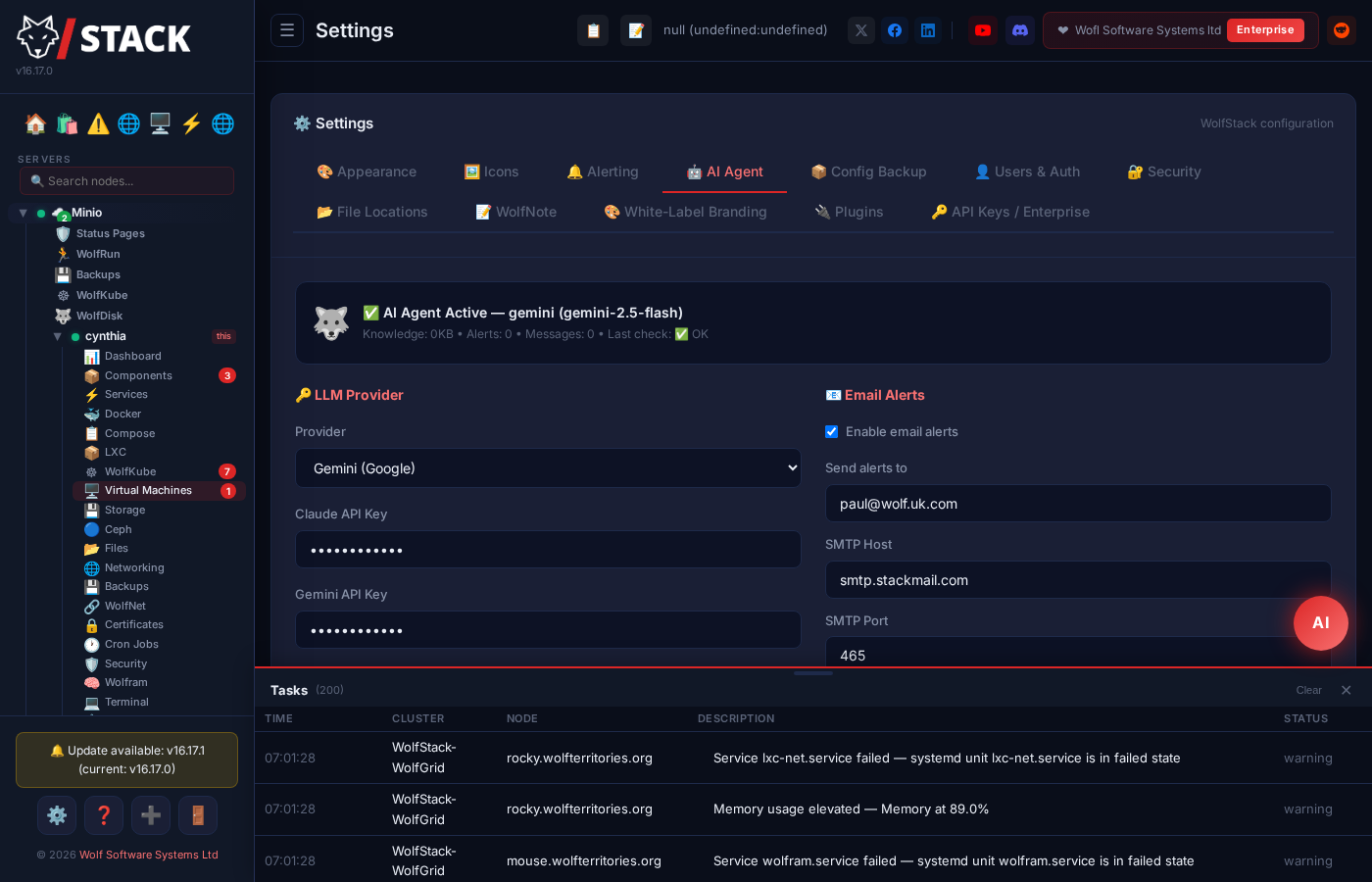
WolfStack’s AI Agent lets you ask questions about your infrastructure in natural language. Get intelligent answers about server health, resource usage, container status, and configuration — powered by leading AI models.
Looking for named, persistent-memory agents? See WolfAgents — a multi-agent surface that sits on top of this same AI configuration. The AI Agent page (this one) configures the provider + key; WolfAgents lets you create named personalities that each have their own system prompt, conversation history, tool allowlist, and optional Discord / Telegram / WhatsApp channel binding.
Supported Providers
| Provider | Models | Configuration |
|---|---|---|
| Anthropic Claude | Claude Sonnet, Opus, Haiku | API key from console.anthropic.com |
| Claude Code CLI New in v24.35 | Your Claude Pro / Max subscription — no per-token API billing | Install the claude CLI on the node and log in once; WolfStack drives it directly. Ideal if you already pay for Claude and don't want a separate API key. |
| Google Gemini | Gemini Pro, Flash | API key from Google AI Studio |
| OpenAI (ChatGPT) | gpt-4o, gpt-4o-mini, o1, o3, o4 series | API key from platform.openai.com/api-keys |
| OpenRouter | 100+ models behind one API (Claude, GPT, Llama, Mistral, etc.) | API key from openrouter.ai/keys |
| Cloudflare Workers AI | Llama, Mistral, Qwen, Gemma — CF account ID + Workers AI token, URL built automatically | Token from dash.cloudflare.com/profile/api-tokens (needs "Workers AI" permission). Free tier covers most homelabs. |
| Local / Self-Hosted | Any model your server supports | Any OpenAI-compatible API endpoint (Ollama, LM Studio, LocalAI, vLLM) |
Custom model names
Each provider's model dropdown ends with a Custom… option that swaps in a text input — useful for Cloudflare Workers AI (hundreds of model IDs that change faster than we can curate), private Ollama tags, or a freshly-released model the dropdown doesn't include yet. Type any model name the provider accepts.
Enable / Disable the agent without losing config
The top of Settings → AI Agent has a single Enable AI agent checkbox — the master switch. When unchecked:
- The chat bubble disappears from every page.
- The hourly health-check loop pauses (no LLM tokens spent on idle hosts).
- Validation is skipped so you can save partial config while disabled — useful for a fresh install that wants the agent off by default.
- Every API key, account ID, and model selection is preserved — one click brings the agent back exactly as it was.
The health check interval gained a corresponding Off (chat only) setting — keep the chat agent live but skip the periodic LLM probe. Handy when running against a metered or free-tier backend where you only want to pay for queries you initiate.
Local AI Support
WolfStack can connect to self-hosted AI servers running on your own hardware — no cloud API keys required, no data leaves your network, and zero ongoing API costs.
Supported Local AI Servers
Any server that exposes an OpenAI-compatible API works out of the box. Tested platforms include:
- Ollama — the most popular local AI runtime. Run
ollama serveand WolfStack connects automatically. - LM Studio — desktop app with a built-in OpenAI-compatible server
- LocalAI — drop-in OpenAI replacement with broad model support
- vLLM — high-performance serving engine for large language models
- text-generation-webui (oobabooga) — enable the OpenAI extension
- llama.cpp — lightweight C++ inference server with
--apiflag
Auto-Detection
When you point WolfStack at a local AI server, it automatically queries the available models and populates the model dropdown. No need to manually look up model names — just set the endpoint URL and WolfStack discovers what’s installed.
Expert Knowledge Base
WolfStack ships with a built-in expert knowledge base that is injected into every AI conversation. This means even smaller local models can give deep, accurate answers about your infrastructure because they receive curated context about WolfStack’s architecture, commands, and best practices alongside your question.
Why Run AI Locally?
- Zero cost — no per-token API charges, run unlimited queries
- Complete privacy — infrastructure data never leaves your network
- No internet required — works in air-gapped environments
- Your choice of model — use whatever model fits your hardware and needs
Capabilities
- Natural language queries — Ask questions like “Which node has the most free disk space?” or “Show me containers using more than 2 GB of memory”
- Fleet health summaries — Get an overview of your entire infrastructure in plain English
- AI-assisted diagnostics — Troubleshoot issues with context-aware suggestions based on your actual system state
- Cross-cluster metrics — Query metrics and resource usage across all nodes and clusters
- Command execution — The AI agent can run read-only commands on your infrastructure to gather information for answers
- Proposed actions — When the AI identifies a fixable problem, it proposes specific commands you can approve and execute with one click
- Database access (NEW) — The AI can query MariaDB / MySQL / PostgreSQL through operator-defined connection profiles — ask "how many customers signed up yesterday?" and get a real answer from the live database
Database Access — AI Talks to SQL
WolfStack’s AI can run real queries against your databases using the same connection profiles the Database Manager uses. Ask "how many orders in the last 24 hours?" and the AI writes the SQL, runs it, and feeds the numbers back into its answer — all routed through the cluster, all audit-logged, all enterprise-ACL-gated.
How it’s gated
Every AI SQL call passes through three independent checks:
- Per-agent permission flags — each agent has separate
sql_read,sql_update, andsql_deleteswitches. All default off. DDL (ALTER / CREATE / DROP) is never granted to agents regardless of flags — schema changes always require a human operator. - Connection allowlist — an operator explicitly picks which connection IDs each agent is allowed to touch. Empty list means no database access.
- sqlparser classifier — every query is parsed and classified before dispatch. An
UPDATEpretending to be aSELECTis rejected. Multi-statement queries are rejected outright. The tier the agent declared must equal-or-exceed what the parser detected.
Audit trail
Every AI query is appended to /var/log/wolfstack/sql-audit.log with the agent ID, connection ID, full query text, outcome, row count, and elapsed time. You can review exactly what an agent asked the database at any point in the past.
Why this is safe
AI agents use the same cluster-aware pipeline as the UI — encrypted passwords at rest, cluster-secret authentication for inter-node proxying, enterprise per-user ACL on every profile, and the hardcoded API denylist that blocks agents from reaching /api/sql-connections/* through the generic wolfstack_api tool. The only path to SQL is the dedicated, gated sql_query tool.
AI Actions — Propose & Fix
When the AI diagnoses an issue, it doesn’t just tell you what’s wrong — it proposes the fix and lets you approve it with one click.
How It Works
- You ask a question or the AI detects an issue during a health scan
- The AI proposes actions — each fix is shown as a card with the exact command, a risk level, and an explanation of what it does
- You approve or dismiss — nothing executes without your explicit click
- Results appear instantly — command output is shown in the chat, and the action is logged to the audit trail
Risk Levels
| Level | Examples | Badge |
|---|---|---|
| Low | Service restarts, cache clears, config reloads | Green |
| Medium | Config file changes, package installs, firewall rules | Amber |
| High | Disk operations, user management, network changes | Red |
Safety Guardrails
- Never auto-executes — every action requires explicit user approval
- Catastrophic commands blocked — patterns like
rm -rf /,ddto disks, fork bombs, and filesystem wipes are permanently blocked even if approved - 30-second timeout — commands that hang are automatically killed
- 10-minute expiry — proposed actions expire if not approved within 10 minutes
- Full audit log — every proposed, approved, rejected, and executed action is logged to
/etc/wolfstack/ai-actions.logwith timestamps, usernames, and results - Cluster-wide — actions can target the local node or all nodes in the cluster
Actions in Alert Emails
When the AI health scanner detects an issue and proposes a fix, the alert email includes the proposed actions with their risk level and commands. You can then open the WolfStack dashboard to approve them.
Health Monitoring
The AI Agent can run automated health checks across your infrastructure and send email alerts when it detects problems. This works alongside the Issues Scanner and threshold-based alerting to provide an additional layer of intelligent monitoring.
- Scheduled scanning at configurable intervals (every 15 / 30 minutes, hourly, every 6 hours, daily, or Off if you only want chat — no automated probes)
- AI analyses system state and identifies potential issues
- Email + Discord / Telegram / Slack alerts on detected problems — never auto-posted to public status pages (host internals stay private)
- Findings include context, evidence, and proposed one-click fixes via the Actions system
- "Cleared" notifications when a previously-alerting host returns to ALL_OK — no silent recoveries
Tool-call cap (runaway-model guard)
Each chat turn lets the model run a multi-round tool-use loop (read a file, exec a command, read another file, propose an action, etc.). Most realistic ops tasks finish in 3–6 rounds; reasoning-heavy models (Claude Opus, GPT-5, o-series) sometimes want more headroom for multi-step investigations.
- Default: off. The agent runs until the model itself emits an end-of-turn response — correct behaviour for trusted Claude / Gemini / OpenAI models.
- Tick "Cap agent tool-calls per turn" to apply a 1–100 round cap. Default cap is 6 once enabled.
- Tighten the cap if a misbehaving local model loops forever; raise the cap if a reasoning-heavy investigation gets truncated mid-thought.
Hand-edited bad values in /etc/wolfstack/ai-config.json are clamped to [1, 100] on every load so a typo can't either melt your API budget or truncate every turn to zero rounds.
Configuration
Set up the AI Agent in Settings → AI Agent:
- Tick Enable AI agent (or leave unchecked to save config without activating)
- Choose your provider (Claude / Gemini / OpenAI / OpenRouter / Cloudflare Workers AI / Local)
- Enter the credentials — the provider panel only shows fields relevant to that provider
- Pick a model from the dropdown, or Custom… + type a model name
- Choose a health check interval, or Off (chat only) to skip periodic probes
- Optionally tick the tool-call cap and configure email alerts
- Click Save Settings — the chat bubble appears (or hides) immediately based on the enabled toggle
AI configuration is automatically synced across all nodes in your cluster.