Watch: a tour of every settings section
A walk through Appearance, Profile, Alerting, the AI agent, Backup, Users & Security, DNS and Cloud providers, and more. The written steps are below.
Overview
The Settings page is your central configuration hub for WolfStack. Access it from the gear icon in the bottom-left of the sidebar.
Changing a setting
- Click the gear icon at the bottom-left of the sidebar to open Settings.
- Pick a section — Themes, Alerting, Docker Registry, Node Settings, Ports or Cluster Settings (each is described below).
- Make your change, then click Save in that section. Most settings apply immediately; a few (noted in the UI) ask you to restart a service or the node.
- Cluster Settings apply fleet-wide; Node Settings apply only to the node you have open in the sidebar.
Themes
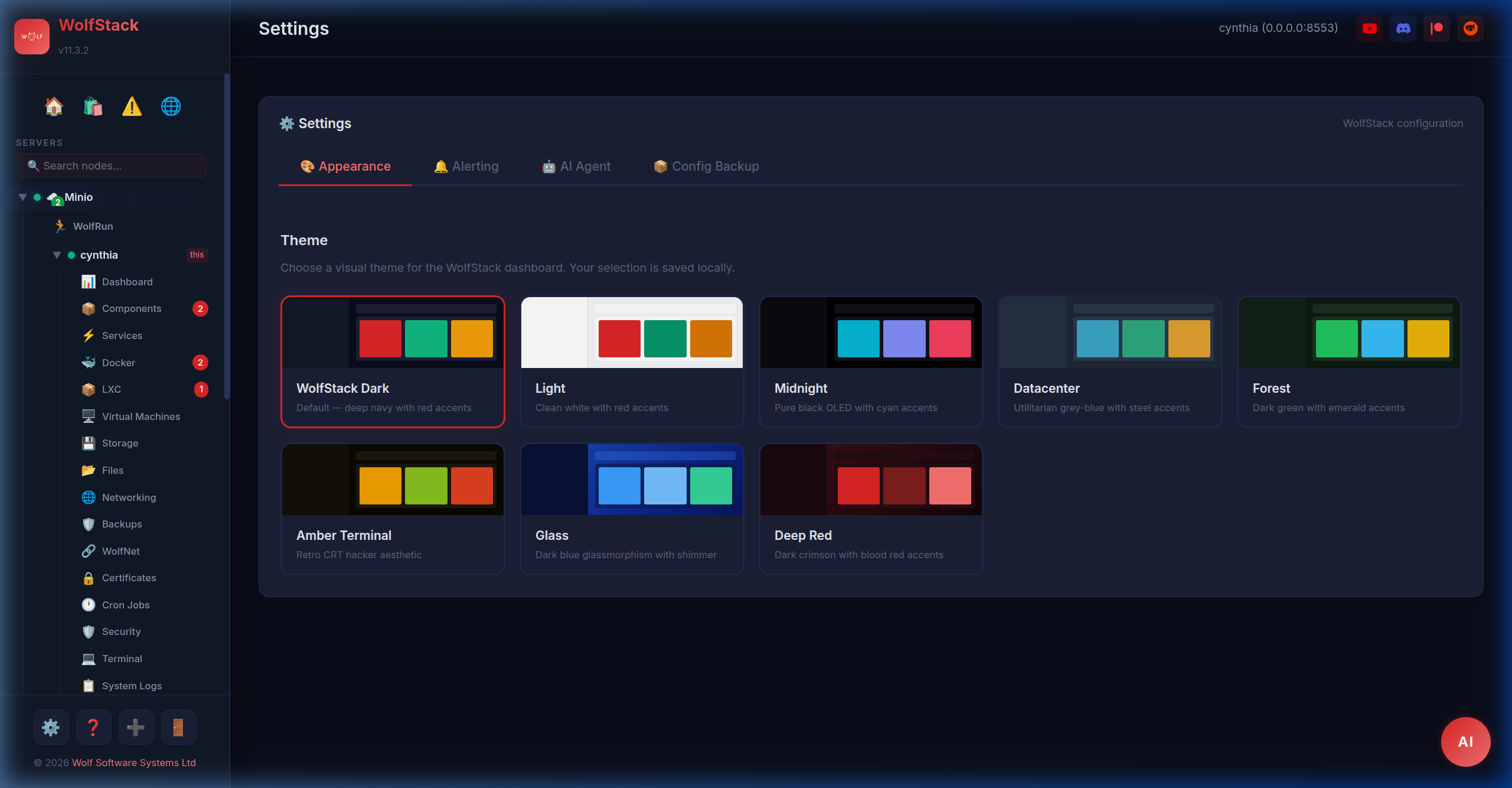
WolfStack includes multiple beautiful themes. Switch between them on the Themes tab:
- WolfStack Dark — The default dark theme with red accents
- Midnight — Deep blue/black theme
- Glass — Glassmorphism with frosted effects and deep shadows
- Amber Terminal — Retro amber-on-black terminal aesthetic
- Light — Clean light theme
Alerting & Notifications
Configure alert thresholds and notification channels from the Alerting tab in Settings.
Notification Channels
- Discord — Send alerts to a Discord channel via webhook URL
- Slack — Send alerts to a Slack channel via webhook URL
- Telegram — Send alerts via Telegram Bot API
Alert Thresholds
- CPU — Alert when CPU usage exceeds a percentage
- Memory — Alert when memory usage exceeds a percentage
- Disk — Alert when disk usage exceeds a percentage
Alerts are checked on a configurable interval (default: 60 seconds). One node in the cluster is automatically elected as the primary alerter to avoid duplicate notifications.
You can test your configuration before enabling it to verify webhooks are working correctly.
Docker Registry
Configure private Docker registry credentials so WolfStack can pull images from your private registries. Add registry URLs, usernames, and passwords/tokens from the Docker tab.
Node Settings
Per-node configuration is available by clicking the gear icon on any node in the sidebar. Node settings include:
- Hostname & Address — View and modify node connection details
- Cluster assignment — Move nodes between clusters
- WolfStack version — View installed and latest versions, upgrade from the dashboard
- WolfNet configuration — View and manage WolfNet peer details
- Node Ports — see the section below
- Delete node — Remove a node from the cluster
Node Ports
Each node serves on three ports, all configurable from the Node Ports panel in the node settings dialog:
| Port | Default | Purpose | Safe to change? |
|---|---|---|---|
| API (HTTPS / dashboard) | 8553 | Web dashboard and the REST API | Only with good reason — peers must learn the new port |
| Inter-node (HTTP, TLS only) | 8554 | Plain-HTTP sibling of the API port, used for node-to-node calls on TLS-enabled clusters | Same caveat as API |
| Status pages | 8550 | Public status pages — plain HTTP for external monitoring | Yes — usually fine to rebind |
The settings live in /etc/wolfstack/ports.json. Changes take effect on next WolfStack restart.
Auto-fallback on port collision
If WolfStack boots and the configured status port is taken (commonly by WolfDisk, which also defaults to 8550), it scans 8550–8599 for a free slot, binds there, persists the new port to ports.json, and logs a warning. The API and inter-node ports do not auto-fallback — silently moving them would break peer polling, so those hard-fail at startup if taken.
Cluster Settings
- Cluster name — Rename your cluster
- WolfNet connections — Click 🔗 Update WolfNet Connections to automatically configure encrypted mesh networking between all nodes in the cluster
- Cluster secret — View or regenerate the cluster authentication secret