


WolfRouter
A native cluster-wide router, firewall, DHCP server, DNS resolver, packet sniffer, and live rack diagram — all built into WolfStack. Replaces the classic "run OPNsense in a VM" pattern with something that lives on the host and knows about every node, VM, and container.
This page is written for two audiences. If you already know networking, skip to What you get. If routers, DHCP, and DNS are a fog to you, start at The basics — five concepts and you'll understand everything else on this page.
What is a router, really?
A router is a traffic cop for packets. Every device on your network — laptop, phone, fridge, that weird IP camera — sends packets to the router, and the router decides where each one goes next. The internet, another machine on your LAN, a neighbour's Wi-Fi, or the bin.
A home router (the box from your ISP) does four jobs in one appliance:
| Job | What it means in plain English | In WolfRouter it's called… |
|---|---|---|
| 1. Talks to the internet | Holds one end of the pipe from your ISP. Your modem hands it an internet IP; everything on your side shares that one address. | A WAN connection (DHCP, Static, or PPPoE) |
| 2. Hands out addresses to your devices | When your laptop joins, it says "I need an address". The router picks a free one from a pool and leases it for a while. | The DHCP server on a LAN segment |
| 3. Translates names to numbers | You type google.com; your device asks the router "what's the number?"; the router asks the real internet and caches the answer. | The DNS resolver on a LAN segment |
| 4. Decides who can talk to whom | Your laptop reaches the internet; some random internet host does NOT reach your laptop. That's the firewall. | Firewall rules between zones |
WolfRouter is those four jobs, done by your server instead of a dedicated box — with a nice UI on top so you never have to edit /etc/dnsmasq.conf or hand-type an iptables rule.
The basics — five concepts, and everything else follows
Once these five clicks into place, every screen in WolfRouter is readable. Skim the table, come back to it if something stops making sense later.
| Concept | What it actually is | Beginner example |
|---|---|---|
| WAN Wide Area Network |
The network outside your building — the internet side. The interface plugged into your fibre/cable modem or ONT. | The blue cable going from your server to the box on the wall your ISP installed. |
| LAN Local Area Network |
The network inside your building. The interface your switch / Wi-Fi access point / laptop plugs into. | The cable going from your server to your home switch, and from the switch to everything else. |
| DHCP Dynamic Host Configuration Protocol |
The "address-assigner". When a device joins the LAN, DHCP hands it an IP, the router's address, and a DNS server — all in one burst. | Plug a laptop in. Three seconds later it has 192.168.10.57. That was DHCP. |
| DNS Domain Name System |
The phone book for the internet. Converts google.com to 142.251.33.206 because routers only understand numbers. |
Type a URL. Your browser asks DNS first. Every single page load, every app on your phone. |
| NAT Network Address Translation |
Your ISP gives you one public IP. NAT is how all 30 devices on your LAN share it — the router rewrites packets on the way out and remembers who sent what. | Your laptop 192.168.10.57 opens gmail.com. Gmail sees the request coming from your public IP, not 192.168.10.57. That rewrite is NAT. |
Two more terms that WolfRouter uses heavily:
- Zone — a label you stick on an interface (
WAN,LAN 0,WolfNet,DMZ,Trusted). Rules are written in zone terms — "allow LAN 0 → WAN" — so you never have to remember whetherenp3s0is the inside or the outside port today. Swap the cable, relabel the zone, every rule still makes sense. - Firewall rule — "allow", "deny", or "reject" traffic matching a pattern (source zone, destination zone, protocol, port). A default-deny router blocks everything except what the rules explicitly allow; a default-allow router (WolfRouter's default) permits everything except what you block.
Why WolfRouter exists
The traditional homelab pattern is to run OPNsense or pfSense as a VM on top of your hypervisor. It works, but it has three uncomfortable properties:
- The firewall sits inside one of the things it's supposed to govern. Your hypervisor is both the host and the firewalled guest. That's architecturally upside-down.
- The WAN and LAN cables have to go through the hypervisor's networking before they reach the firewall VM. That's a lot of rope to tangle, and often involves VLAN passthrough quirks.
- You end up managing two separate worlds: the firewall lives over there (its own UI, its own users, its own updates), and your VMs/containers live over here.
WolfRouter takes the opposite approach. The router is the host. It knows about every WolfStack node, every VM, every container, every bridge. It exposes the whole stack — physical NICs, bridges, WolfNet overlay, WireGuard, port forwards — in one cluster-aware view. No VM, no passthrough, no separate login.
What you get
Stateful firewall with zones
- Define WAN / LAN / DMZ / WolfNet / Trusted zones (or roll your own custom ones), assign interfaces to them, then write rules in zone-to-zone terms.
- Rules compile to
iptablesin dedicatedWOLFROUTER_*chains so existing Docker, LXC, and DNAT rules stay untouched. - Atomic apply with safe-mode: every ruleset goes through
iptables-restore --testbefore swap. A 30-second rollback timer auto-reverts the change if you don't confirm — no more locking yourself out of SSH after a typo. - Rule editor with structured pickers: pick a source and destination by kind (Any / Zone / LAN / Interface / IP / VM / Container) with dropdowns sourced from live topology. You never type an interface name.
Per-LAN DHCP + DNS via dnsmasq
- One dedicated
dnsmasqinstance per LAN segment, bound strictly to that interface. - DHCP pool ranges, MAC-pinned reservations, custom lease times, live lease table.
- DNS forwarder presets: Cloudflare, Google, Quad9 (malware filter), OpenDNS, AdGuard (ad/tracker block), or custom.
- Local A records for giving VMs friendly hostnames without an external DNS server.
- Per-LAN query logging on demand — watch real client queries arrive in real time.
WAN connections
- DHCP — the normal "your ISP router hands out an address" case. WolfRouter just installs NAT; the existing host DHCP client does the rest.
- Static — for business lines with a fixed IP.
- PPPoE — fully managed. For ADSL/VDSL/fibre in Germany (Telekom, Vodafone), UK (BT), France (Orange) and elsewhere where the ISP requires a PPPoE login. WolfRouter writes the
pppdpeers file and PAP/CHAP secrets (mode 0600, root-only), auto-installsppp+pppoepackages, brings the link up, and surfaces live status on each card.
⚡ Quick Setup wizard
- Assign WAN and LAN zones in the Zones tab, click Quick Setup, review the plan, click Run setup. Done.
- Auto-installs
dnsmasq+iptablespreflight (on apt/dnf/yum/pacman/zypper), creates the DHCP-mode WAN, assigns the router IP to the LAN interface, brings the interface up, creates the LAN segment, applies the firewall, verifies DNS bind — every step reported with ✓, ⚠, or ✗ inline. - Offers six DNS provider presets at the top of the wizard so you never type a forwarder IP.
🛠 DNS Tools tab
- LAN-side DNS health — toggle per-LAN dnsmasq query logging, see arriving client queries in real time, and capture 10 seconds of UDP port 53 traffic on the LAN interface. Answers "is my client's query actually reaching dnsmasq?" instead of the usual guessing.
- Host-side tools — ping, traceroute, nslookup, whois. One-click install of any missing tools via the host's package manager (picks the right per-distro package name automatically:
dnsutilson Debian,bind-utilson Fedora,bindon Arch, etc).
💾 Config export / import
- Back up your entire WolfRouter setup (zones, LANs, WAN connections, firewall rules, global toggles) to a single JSON file with one click.
- Restore onto the same node, or clone onto another node. PPPoE passwords are masked as
"***"on export (safe to share the file), and preserved on import if you're restoring to the same box.
Live diagnostics
- Packet capture — Wireshark-style: pick a node, an interface, optionally a BPF filter (
tcp port 443,icmp,host 8.8.8.8), choose a packet count and timeout. Streams back parsed into a coloured table by protocol.tcpdumpauto-installed on first use. - Connection tracking viewer — live
conntrackoutput sorted by proto, source, destination, state, timeout. - Firewall log stream — rules tagged with "Log this match" send to NFLOG and surface in a live tail.
- Policy map — drag-and-drop graph of your current rules + port forwards. Click a node to trace connections, drag between nodes to create a new rule.
- Visual TraceRoute — trace the path from any cluster node to any destination and see each hop rendered visually with latency. Diagnostics surface inline below the network diagram.
Subnet routing across the mesh New
- Advertise LAN and Docker subnets across WolfNet — expose any local subnet (e.g.
10.10.10.0/24, a Docker bridge, a Proxmox vmbr) to every other node on the mesh. Tailscale-style "subnet routes", but built in. - Kernel routes applied at runtime — no reboot, no manual
ip route. Add or remove a subnet route in the UI and the kernel routing table updates immediately on every cluster node. - Gateway-side firewall plumbing — the gateway node automatically enables IP forwarding, adds bidirectional FORWARD ACCEPT rules, sets POSTROUTING MASQUERADE for return traffic, and disables reverse-path filtering on the WolfNet interface.
- Built-in diagnostics — one click runs five checks (forwarding enabled, FORWARD rules present, MASQUERADE present, rp_filter loose, kernel route installed) and tells you exactly which one is missing if traffic isn't flowing.
- Node picker UI — pick which node owns the subnet from a dropdown of cluster members; the rest follows automatically.
Cluster replication
- Every rule, LAN, zone, and WAN config change automatically syncs to every other online cluster node via the cluster secret. Nothing to push by hand.
- The view is cluster-scoped: peers from other clusters are hidden, and a small "N nodes hidden" note explains why.
Your first setup in five minutes
Assumes: you've installed WolfStack, you have two Ethernet interfaces (one to your modem, one to your home switch), and you want WolfRouter to replace or sit beside your existing router.
⚠ Before you start: shut down any other DHCP server on the LAN you're about to manage. OPNsense, pfSense, a home router's DHCP, another WolfRouter — they'll all compete and cause clients to get random leases. One DHCP per broadcast domain.
- Open WolfRouter. Sidebar → your cluster → WolfRouter. You'll see the rack view of your cluster with every interface as a port.
- Assign zones. Switch to Table view → Zones. Use the dropdown on each row:
- The interface plugged into your modem/ONT →
WAN - The interface plugged into your home switch →
LAN 0 - Everything else (docker0, lxcbr0, wolfnet0) — leave on their auto-detected zone; WolfRouter already knows.
- The interface plugged into your modem/ONT →
- Click ⚡ Quick Setup. The wizard will:
- Preflight-install
dnsmasqandiptablesif missing. - Create a DHCP WAN connection on your WAN interface.
- Create a LAN segment with
192.168.10.0/24(editable), router IP192.168.10.1, DHCP pool192.168.10.100–250. - Pick your preferred DNS provider from the dropdown (Cloudflare by default).
- Apply the firewall, then run a host-side DNS bind check.
- Preflight-install
- Run setup. Watch the step-by-step ✓/✗ output in the wizard. About ten seconds on an already-installed box; a minute if
dnsmasqstill needs apt-installing. - Verify from a client. Plug a laptop into your home switch, let it get a lease. It should hit the internet immediately. If DNS fails, open the DNS Tools tab → LAN-side section → enable query logging → try
nslookup cloudflare.com 192.168.10.1from the client. Entries in the log = DNS path works; no entries = firewall/routing issue on the client side.
Which setup matches your situation?
| Your situation | What to configure in WolfRouter | Gotchas |
|---|---|---|
| ISP box + WolfStack behind it (most common — your ISP router does NAT, WolfStack is just a server) |
Don't assign a WAN zone. WolfRouter isn't the router here. Use WolfStack for containers/VMs, let the ISP box handle DHCP/DNS. | None, just don't enable Quick Setup. You already have a router. |
| Cable / fibre with DHCP uplink (modem gives you an IP via DHCP, WolfStack is the router) |
WAN zone on the modem-facing interface, LAN zone on the switch-facing interface, Quick Setup. Done. | If the ISP's modem is in router mode you'll end up double-NATted. Flip it to bridge mode first. |
| PPPoE (ADSL / VDSL / fibre in DE/UK/FR) | WAN zone on the ONT-facing interface. Go to WAN / PPPoE tab → New → mode PPPoE, enter your ISP username/password. Tick "Make this PPP link the default route" only if this is your primary uplink. |
Turning on "default route" overwrites your system's existing default gateway the moment the link comes up. If your server's current internet goes via a different NIC, this will break it. There's a red warning in the UI. |
| Two LANs (Home + IoT) | Assign LAN 0 to one interface, LAN 1 to another. Quick Setup creates both with adjacent subnets. Add firewall rules to block IoT → Home if you want the quarantine pattern. |
Both LANs share the same default-allow FORWARD policy — add an explicit DENY between them to isolate. |
| Cluster of WolfStack nodes (HA setup, multiple boxes) |
Configure on one node. Every change replicates to peers via the cluster secret. The rack view shows all cluster nodes; non-cluster peers are hidden. | Each node still needs its own physical WAN/LAN cabling — the config replicates, not the wires. |
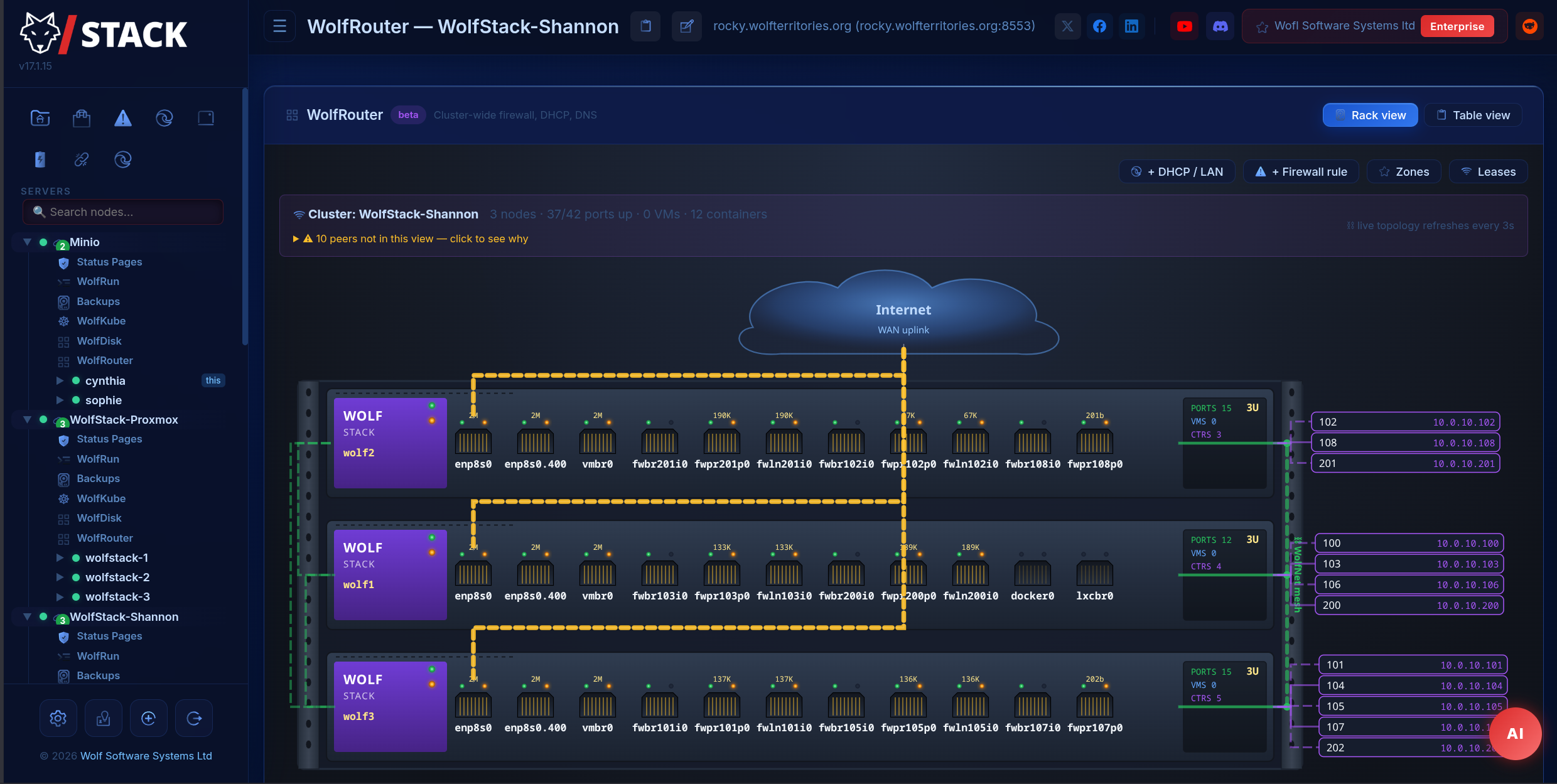
The rack view
The flagship visual: your whole cluster rendered as a real server rack, with the Internet "cloud" at the top and patch cables routing from each WAN port up through the rack rails to the cloud. Each cluster node is a 2U appliance (or 3U/4U/5U if it hosts more than 6 devices) with a brand panel, hostname LCD, status LEDs, RJ45 jacks with link/activity indicators, and live BPS readouts on active ports.
- Per-node device columns — VMs (blue) and containers (purple) appear to the right of their owning server, wired in with curved patch cables. Hover a port to see Interface / State / Role / IP. Click to assign a zone.
- Manhattan-routed cables — right-angle bends (no spaghetti curves), colour-coded by purpose: yellow WAN, blue LAN, green WolfNet, purple management, grey unassigned.
- Animated when active — cables carrying live traffic flow with dashed animation; idle cables stay static. Activity LEDs above each port pulse on packet bursts.
- Inter-node WolfNet mesh — every pair of cluster nodes shows a green animated cable on the right side of the rack — the L3 overlay holding the cluster together is visible, not implied.
- Live, refreshes every 3 seconds — topology aggregates from each node's local snapshot via the cluster secret RPC. New nodes appear on the next poll.
Per-host WolfRouter
WolfRouter appears at two levels in the tree. At cluster level it shows the whole stack — the rack view, every node, every LAN. Inside each host node there is now also its own WolfRouter entry: opening it gives you that single host’s router exactly as if you had connected to the machine directly.
This matters when the router-shaped node isn’t the cluster master. Changing DHCP settings or reading DHCP leases on, say, an ISP-facing router node used to mean logging into that node’s own dashboard. The per-host view does it from one place — every firewall, LAN, lease, DNS and proxy action is proxied straight to that host, so edits land on the right machine.
Troubleshooting cheat sheet
Most problems fall into one of a handful of patterns. This table saves you ten minutes of staring at logs.
| Symptom | Most likely cause | Where to look |
|---|---|---|
| Client gets a DHCP lease but can't reach the internet. | NAT/MASQUERADE isn't installed on the WAN interface, or ip_forward is disabled. |
WAN tab — the connection should be enabled. Run iptables -t nat -L POSTROUTING -n -v; expect a MASQUERADE rule on the WAN iface. |
| Client doesn't get a DHCP lease at all. | Another DHCP server on the same LAN answered first, or dnsmasq isn't bound on the LAN interface. | DNS Tools → LAN-side → Capture UDP 67/68. Also check that only one DHCP server exists on the LAN. |
| DHCP works, internet works, but DNS fails. | Client has a stale /etc/resolv.conf pointing at a dead resolver, or the firewall is blocking UDP/53 from the LAN. |
DNS Tools → LAN-side → enable query logging → try DNS from client. No entries = packet never arrived. Entries = dnsmasq replied, upstream issue. |
| DNS works on the WolfStack host but not from LAN clients. | Firewall (INPUT chain) blocking UDP/53, or dnsmasq bound to the wrong subset of interfaces. |
Host-side dig @<router-ip> routes via lo and is misleading. Use the LAN-side query log — that's the only accurate test. |
| PPPoE link won't come up. | Wrong ISP username, wrong service name, or the underlying Ethernet isn't linked to the ONT. | WAN / PPPoE tab — status badge shows "down / connecting". Check pppd logs via journalctl -u pppd-wolfrouter-*. |
| Rule applied, immediately locked out of the UI. | The rule blocked something you needed (often Input → Trusted zone deny). | Don't panic. Safe-mode auto-reverts after 30 seconds if you don't confirm. Wait it out. |
| Rack view says a peer is "not working". | That peer belongs to a different cluster, or is offline, or its node_type isn't wolfstack. |
The banner is split: amber = cluster-mate unreachable, grey = hidden (different cluster). Only amber is a real problem. |
| Config got into a weird state and I want a do-over. | Happens. Everything is recoverable. | 💾 Export your current config first (for reference), delete the LAN/WAN/rules that are misbehaving, re-run Quick Setup. Or import a known-good backup. |
Glossary — in plain English
| Term | Plain-English meaning |
|---|---|
| ARP | How one device on a LAN finds another device's MAC address when it only knows the IP. "Who has 192.168.10.1? Tell me your MAC." |
| Bridge | A virtual switch inside your server. Lets multiple virtual interfaces (VMs, containers) share one physical NIC. |
| CIDR | The /24 in 192.168.10.0/24. Says how many IPs are in the subnet. /24 = 256 addresses. /16 = 65,536. Smaller number = more addresses. |
| dnsmasq | A small, popular program that does both DHCP and DNS. WolfRouter runs one copy per LAN segment. |
| Forwarder | An upstream DNS server your resolver asks when it doesn't have the answer cached. 1.1.1.1 is Cloudflare, 8.8.8.8 is Google. |
| Gateway | The IP your devices send packets to when the destination isn't on the local LAN. Usually the router's LAN IP. |
| IP address | A number that identifies a device on a network. Looks like 192.168.10.57. |
| iptables | The Linux kernel's firewall. WolfRouter compiles your rules to iptables under the hood. |
| Lease | A DHCP assignment with an expiry time. The router leases you an IP for, say, 12 hours; after that you either renew or ask for a new one. |
| MAC address | A unique number burned into every network card, looks like aa:bb:cc:dd:ee:ff. Used on the local wire; never leaves the LAN. |
| MASQUERADE | The specific flavour of NAT that home routers use. Rewrites the source IP of outgoing packets to the router's WAN IP. |
| Port | A number (1–65535) that tells the receiving host "which service is this packet for". HTTP is port 80, HTTPS is 443, SSH is 22. |
| Port forward (DNAT) | Making a LAN service reachable from the internet. "Anything hitting my public IP on port 443, send to 192.168.10.50 port 443." |
| Subnet | A contiguous range of IPs on the same LAN. 192.168.10.0/24 is the subnet 192.168.10.0 through 192.168.10.255. |
| TUN | A virtual network interface. WolfNet uses a TUN to send encrypted packets over the internet. |
| VLAN | A way to have multiple logical LANs sharing one physical cable, tagged with a number. Each tag is its own network. |
| Zone | WolfRouter's label for a group of interfaces with the same trust level. WAN / LAN / DMZ / WolfNet / Trusted. |
What it replaces
For the typical homelab use case — "I want a firewall, DHCP for my LAN, a way to forward ports, and visibility into what's flowing" — WolfRouter replaces:
- OPNsense or pfSense (running as a VM)
- Standalone dnsmasq or ISC DHCPD configs
- Manual iptables wrangling
- SSH-ing in to run
tcpdump - Hunting through Grafana for a network topology view
For deeper requirements (IDS/IPS via Suricata, captive portal, full BGP/OSPF, multi-WAN failover) you'll still want a dedicated firewall — OPNsense remains in the WolfStack app store for those use cases. But for 90% of homelab and small-business setups, WolfRouter is the firewall.
Available now
Ships as part of WolfStack v17.2.0+, with Quick Setup, DNS Tools, and config export/import added in v17.4.10+. Find it under Networking → WolfRouter for each cluster in your sidebar.