


Watch: the App Store
Deploying an app in one click and managing it afterward. The written steps are below.
Overview
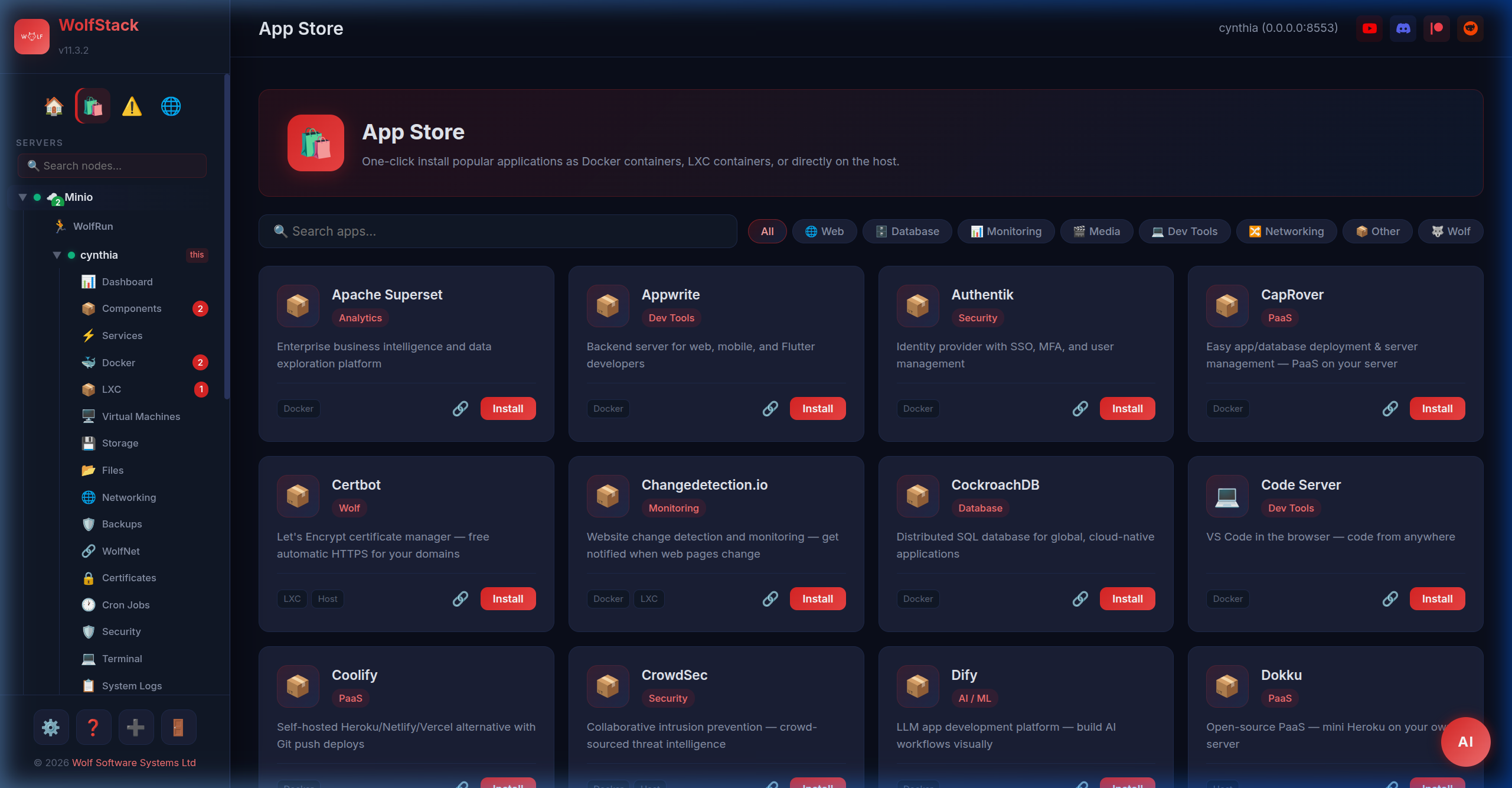
WolfStack’s built-in App Store features over 530 applications that you can deploy to any node in your cluster with a single click. Every app is preconfigured with the correct ports, volumes, and environment variables.
🔍 Browse the full catalogue (530+ apps)
Features
- 530+ apps across 28 categories — media, dev tools, databases, monitoring, AI/ML, gaming, and more
- Deploy to any node with one click — Docker, LXC, bare metal, or KVM virtual machine
- Automatic container creation and configuration with sidecar databases
- Choose target node and resource allocation
- Media stack: Plex, Jellyfin, Sonarr, Radarr, Prowlarr, and the full Servarr stack
- AI/ML: Ollama, Open WebUI, LocalAI, Stable Diffusion, ComfyUI, Jupyter
- Gaming: Minecraft, Valheim, Satisfactory, Pterodactyl, Foundry VTT, and more
VM Apps (ISO-Based Installers)
Some apps don’t fit neatly into a container — they expect to own a whole OS. The App Store supports a VM target for those, driven by the same install-modal UX as Docker/LXC. You pick the storage, everything else is stamped from the manifest or auto-allocated:
- ISO is downloaded to a shared pool on the host (
/var/lib/wolfstack/iso/) and reused across installs - A WolfNet IP is auto-allocated so the VM is reachable across the cluster as soon as its NIC comes up
- Memory, cores, and OS disk size come with sensible defaults that you can override in the install dialog
- For apps that need a second disk for bulk data (e.g. backup storage), the manifest can declare a data disk as well — you set its size and WolfStack attaches it alongside the OS disk
- On a PVE host, the VM is created via
qm create; on a libvirt host, viavirt-install; on a bare WolfStack node, via direct QEMU spawn — same UI either way
Example: Proxmox Backup Server
The first VM-target app in the catalogue is Proxmox Backup Server (PBS) — a dedicated deduplicating backup server. One-click install:
- App Store → search for Proxmox Backup Server → Install
- Pick a Storage for the VM disks, adjust OS disk (GB) (16 default) and Backup storage disk (GB) (200 default, crank this up to match your retention)
- WolfStack downloads the PBS ISO (version auto-resolved by scraping the Proxmox directory listing if the pinned URL 404s), allocates a WolfNet IP, creates and starts the VM
- Open the VM’s 🖥️ VNC console to step through the PBS installer
- Point the PBS datastore at the second (200 GB) disk when the installer asks
- Back in WolfStack, add PBS as a backup destination on any node — the WolfNet IP makes it reachable cluster-wide
LXC Container Requirements
Some applications require special LXC features to be enabled in the container. When installing via the App Store, WolfStack enables these automatically. If you are installing manually or the container was created outside the App Store, you may need to enable them yourself.
| Application | TUN/TAP | FUSE | Nesting |
|---|---|---|---|
| WolfDisk | ✅ Required | ✅ Required | — |
| WireGuard | ✅ Required | — | — |
| Tailscale | ✅ Required | — | — |
| Supabase | — | — | ✅ Required (Docker) |
To enable features manually: go to the container → Settings → toggle the required features → save → restart the container.