


Overview
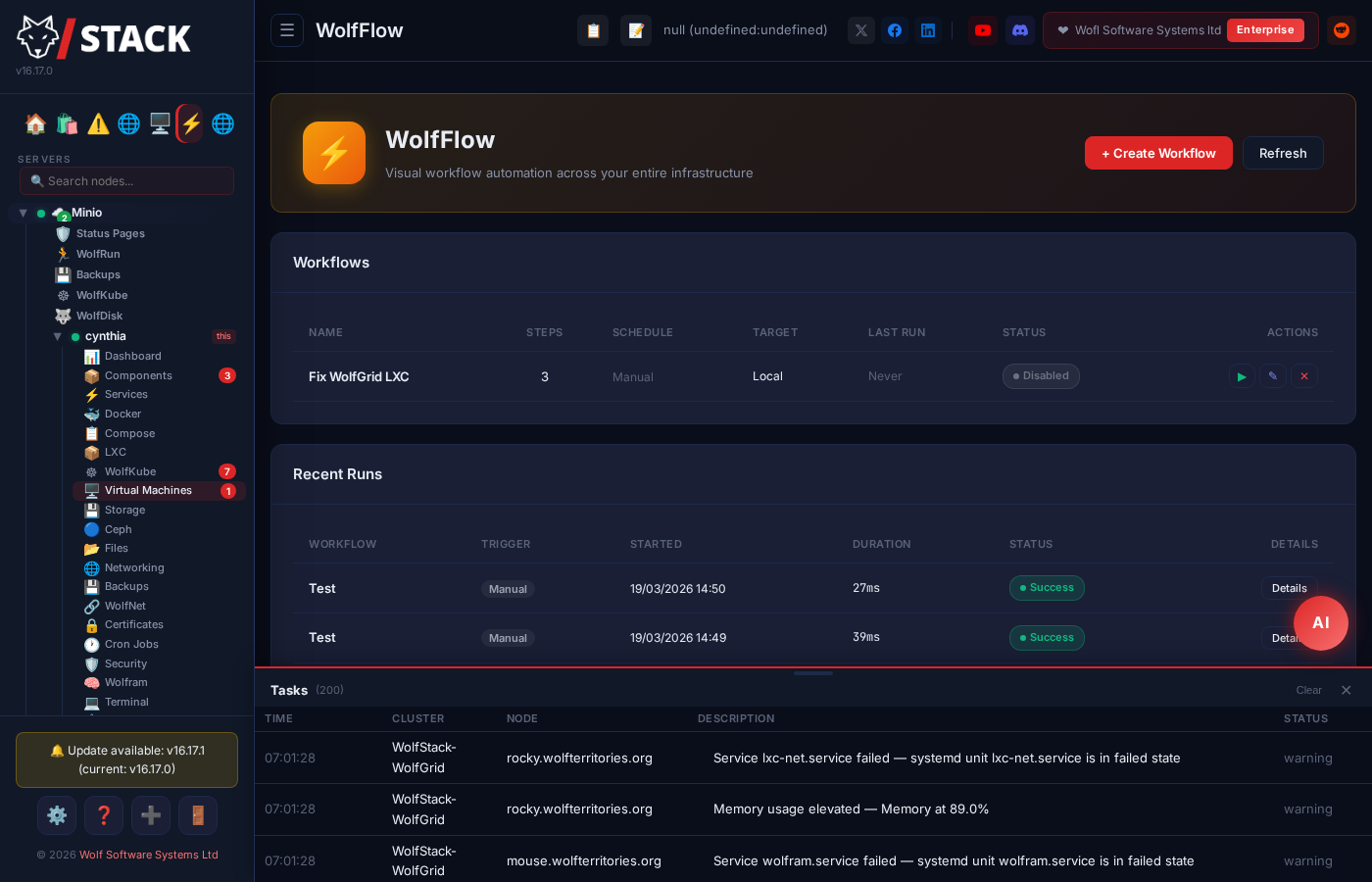
WolfFlow is WolfStack’s visual workflow automation engine. It lets you design multi-step runbooks in a drag-and-drop editor, schedule them with cron expressions, and execute them across your entire infrastructure — all from the WolfStack dashboard.
Think of it as n8n or Rundeck built directly into your server management platform. No external dependencies, no separate services to install — WolfFlow runs inside WolfStack and has full access to every node, container, and VM in your cluster.
Key Features
- Visual workflow editor — Drag-and-drop canvas with a toolbox of built-in actions, step-by-step flow, and per-step configuration
- 18 built-in action types — Update packages, update WolfStack, restart services, run shell commands, clean logs, check disk space, restart containers, Docker prune, HTTP requests, Docker image updates, NetBird management, TrueNAS snapshots, Unifi device control, conditional branching, AI Invoke (ask the configured AI model a question mid-workflow), Agent Chat (message a named WolfAgent with persistent memory and tools), and more
- Flexible targeting — Execute on a single node, all nodes, a specific cluster, hand-picked nodes, individual containers/VMs, or everything (all nodes + all their containers and VMs)
- Cron scheduling — Full 5-field cron expressions with quick presets (daily, hourly, weekly, etc.) or manual-only execution
- Parallel cross-node execution — Steps run on all target nodes simultaneously, with results collected per-node before moving to the next step
- Structured outputs & data passing — Each action produces structured key-value data (not just text). Use
{{step_name.key}}to reference previous step outputs in downstream steps - Conditional branching — If/Else nodes evaluate expressions and jump to different steps based on the result. Build real decision logic into your workflows
- Output reference picker — When editing a Condition, the UI shows clickable
{{step_name.key}}references from all previous steps — no need to remember field names - Retry logic — Configure per-step retry count and delay. Failed steps are automatically retried before triggering the failure policy
- Workflow timeout — Set a maximum runtime for the entire workflow. If exceeded, the workflow aborts cleanly
- 5 failure policies — Abort, Continue, Alert, Notify & Abort, Notify & Continue — with alerting integration (email, Discord, Slack, Telegram)
- Email notifications — Get HTML-formatted results emails with step-by-step output when workflows complete
- Per-step target overrides — Run most steps on all nodes but target a specific container for one step
- Infrastructure explorer — Browse your entire cluster tree (nodes, Docker containers, LXC containers, Proxmox VMs) when selecting targets
- Execution history — Full run logs with per-node, per-step status, duration, and output
The Visual Editor
WolfFlow’s editor is a three-panel layout designed for fast workflow creation:
Left Panel — Toolbox
22 action cards organised by category (System, Docker, Integration, Logic, Services), each colour-coded by type. Click or drag an action to add it as a new step in your workflow.
Centre Panel — Canvas
Your workflow is displayed as a vertical flow of step cards connected by arrows. Each card shows the step name, action type, and target scope. Click the + button between steps to insert a new step, or drag from the toolbox to reorder. Click any step to select it and edit its properties.
Right Panel — Properties
When a step is selected, the properties panel shows:
- Step name — Editable label for the step
- Action type — Change the action (parameters update automatically)
- Action-specific fields — Text inputs, dropdowns, number fields depending on the action
- On failure policy — Continue, Abort, or Alert
- Target override — Optionally override the workflow-level target for this step only
Toolbar
The toolbar across the top of the editor provides:
- Workflow name — Large editable text field
- Schedule — Cron expression input with quick preset buttons
- Enabled toggle — Enable or disable the workflow
- Email results — Optional email address for completion notifications
- Save and Run Now buttons
Action Types
WolfFlow includes 16 built-in actions that cover the most common infrastructure automation tasks:
| Action | Description | Parameters |
|---|---|---|
| Update System Packages | Runs the system package manager (apt, dnf, pacman, or zypper) to update and upgrade all packages | None |
| Update WolfStack | Pulls and installs the latest WolfStack from GitHub | channel — Branch name (default: master) |
| Restart Service | Restarts a systemd service by name | service_name — e.g. nginx, docker, mysql |
| Run Shell Command | Executes an arbitrary shell command with timeout protection | command — Shell commandtimeout_secs — Timeout (default: 300s) |
| Clean Journal Logs | Vacuums the systemd journal to free disk space | max_size_mb — Maximum journal size (default: 500 MB) |
| Check Disk Space | Checks disk usage and fails if above the threshold. Automatically excludes network filesystems (NFS, CIFS, SSHFS) to prevent hangs | warn_threshold_pct — Alert threshold (default: 90%)mount_point — Target mount or “all” |
| Restart Container | Restarts a Docker or LXC container by name | runtime — docker or lxcname — Container name |
| Docker Prune | Removes all unused Docker images, containers, volumes, and networks (docker system prune -af) |
None |
| HTTP Request | Sends an HTTP request to any URL. Useful for triggering webhooks, health checks, or external API calls | url — Target URLmethod — GET, POST, PUT, DELETEheaders — Optional headers (JSON)body — Optional request body |
| Docker Image Update | Checks upstream registries for newer images, backs up the running container, pulls the new image, and recreates the container. Supports one-click rollback | container_name — Container to updatebackup — Create backup before update (default: true) |
| NetBird Management | Manages NetBird network peers — list peers, enable/disable routes, restart the NetBird service | action — list_peers, enable_route, disable_route, restartapi_key — NetBird API keypeer_id — Target peer (optional) |
| TrueNAS Integration | Interacts with TrueNAS SCALE/CORE API for snapshot management, replication triggers, and pool health checks | action — create_snapshot, list_snapshots, check_poolsapi_url — TrueNAS API endpointapi_key — TrueNAS API keydataset — Target dataset (optional) |
| Unifi Device Control | Controls Unifi network devices — restart APs, enable/disable ports, force provision, and query device status | action — restart_device, enable_port, disable_port, provisioncontroller_url — Unifi controller URLapi_key — Unifi API keydevice_mac — Target device MAC |
| Condition (If/Else) | Evaluates an expression and branches the workflow. Use {{step_name.key}} to reference previous step outputs. Supports operators: eq, neq, gt, lt, contains, matches, truthy |
expression — Value or template referenceoperator — Comparison operatorcompare_to — Value to compare against |
| Integration Action | Execute any operation on a configured external integration instance (NetBird, TrueNAS, Unifi, or custom connectors via the API Integration Framework) | instance_id — Integration instance IDoperation — Operation name (e.g. list_peers)params — JSON parameters |
| AI Invoke New | Ask the configured AI model a question mid-workflow and capture its response in a step output. Stateless — no per-agent memory, no tool access. Typical use: yes/no branching ("Is this disk-full alert real or routine log growth?") or summarising prior-step output. Prompt supports {{step_name.key}} templating. |
prompt — The question (templated)system_prompt — Optional override (default is an ops-assistant framing)model / provider — Optional per-step override to pick a cheaper/faster modelmax_tokens — Response length cap |
| Agent Chat New | Send a message to a named WolfAgent. Uses the agent's persistent memory + tool allowlist, so the agent can take actions during the turn (restart a container, fetch metrics) and remember the exchange next time. | agent_id — Agent ID from /api/agentsmessage — Message text (templated)timeout_secs — Wait for agent turn (default 180s) |
Every action has built-in timeout protection and captures stdout/stderr output (up to 5,000 characters per step) for review in the execution history.
Template Variables
Steps can reference outputs from previous steps using the {{step_name.key}} syntax. This allows you to chain steps together — for example, check if a Docker image has an update, then use the result in a Condition step to decide whether to proceed with the update.
Step 1: Docker Update Check  (name: "Check Nginx")
         container_or_image: nginx

Step 2: Condition (If/Else)
         expression: {{Check Nginx.update_available}}
         operator: eq
         compare_to: true

Step 3: Docker Container Update  (only runs if Step 2 is true)
         container_name: nginx
         backup_first: true
Structured Outputs
Each action type produces structured key-value data that downstream steps can reference. For example:
| Action | Output Keys |
|---|---|
| Docker Update Check | image, local_digest, update_available, container |
| Docker Container Update | success, container, image |
| HTTP Request | status_code, response_body, json (parsed response) |
| Condition (If/Else) | result (true/false) |
| NetBird / TrueNAS / Unifi | status_code, response_body, json |
| All other actions | Plain text output (command stdout/stderr) |
Output Reference Picker
When editing a Condition (If/Else) step, the properties panel shows a clickable list of all available
{{step_name.key}} references from previous steps. Click any reference to insert it into the expression field —
no need to remember field names or type the template syntax manually.
Retry Logic
Each step can be configured with a retry count and retry delay. If a step fails, WolfFlow automatically retries it the specified number of times before triggering the failure policy. This is useful for flaky operations like network calls or external API requests.
Workflow Timeout
Set a maximum runtime (in seconds) on the workflow. If the total execution time exceeds this limit, WolfFlow aborts the workflow cleanly. Set to 0 for no limit.
Execution Targets
WolfFlow supports six targeting scopes. Set a default target at the workflow level, then optionally override it per step.
| Target | Behaviour | Use Case |
|---|---|---|
| Local | Execute only on the primary WolfStack node | Single-node maintenance, leader-only tasks |
| All Nodes | Execute on every online WolfStack node | Fleet-wide updates, log cleanup, disk checks |
| Everything | Execute on every node and inside every Docker container, LXC container, and running VM on each node | Fleet-wide maintenance that includes containerised workloads — update packages everywhere, clean logs everywhere |
| Cluster | Execute on all nodes in a named cluster | Multi-cluster environments where you want to target one cluster at a time |
| Specific Nodes | Hand-pick individual nodes by ID | Staged rollouts, targeting a subset of your fleet |
| Containers / VMs | Target specific Docker containers, LXC containers, or VMs — commands execute inside the container/VM, not on the host | Per-container maintenance, targeted updates, health checks inside workloads |
Execution Inside Containers & VMs
When targeting containers or VMs, WolfFlow executes commands inside the target, not on the host:
- Docker — commands run via
docker exec <container> sh -c "..." - LXC — commands run via
lxc-attach -n <container> -- sh -c "..." - VMs — commands run via SSH to the VM’s IP address (WolfNet IP or ARP-discovered)
Actions like Update Packages, Clean Logs, Check Disk Space, Restart Service, and Run Shell Command all work inside containers. The AI automatically adapts the command to the container’s environment.
Infrastructure Explorer
When selecting targets, click Set Target to open the infrastructure explorer. It displays your entire cluster tree with:
- All clusters and nodes with online/offline status
- Docker containers (blue icon) with running/stopped state
- LXC containers (green icon) with running/stopped state
- VMs (orange icon) with running/stopped state
- Multi-select checkboxes for picking exactly what you need
The infrastructure tree is cached for 60 seconds and refreshes automatically.
Scheduling
WolfFlow uses standard 5-field cron expressions (UTC) for scheduling:
minute hour day-of-month month day-of-weekQuick Presets
The editor includes one-click preset buttons for common schedules:
| Preset | Expression | Meaning |
|---|---|---|
| Daily 3am | 0 3 * * * | Every day at 03:00 UTC |
| Midnight | 0 0 * * * | Every day at 00:00 UTC |
| Hourly | 0 * * * * | Every hour on the hour |
| 15min | */15 * * * * | Every 15 minutes |
| Weekly Sun | 0 2 * * 0 | Every Sunday at 02:00 UTC |
| Monthly | 0 2 1 * * | 1st of every month at 02:00 UTC |
| Manual | (blank) | No schedule — run manually only |
Cron Syntax
*— Any value5— Specific value1,15,30— Multiple values1-5— Range*/15— Every N units1-30/5— Every 5th value in range 1–30- Day-of-week: Sunday = 0 or 7, Monday = 1 … Saturday = 6
The built-in scheduler checks all enabled workflows every 60 seconds. Duplicate runs within the same minute are automatically prevented.
Failure Handling
Each step has an on-failure policy that controls what happens when the step fails on one or more target nodes:
| Policy | Behaviour | Use Case |
|---|---|---|
| Abort (default) | Stop the entire workflow immediately. No remaining steps execute. Workflow marked as Failed. | Critical operations where proceeding after a failure would be dangerous |
| Continue | Log the failure and proceed to the next step. Workflow marked as Partial Failure at the end. | Non-critical checks, optional maintenance tasks |
| Alert | Log an error alert and continue. Similar to Continue but with elevated visibility in the task log. | Steps you want to be notified about but that shouldn’t block the workflow |
| Notify & Abort | Send a notification via the alerting system (email, Discord, Slack, Telegram) and then abort the workflow. | Critical failures that need immediate human attention |
| Notify & Continue | Send a notification via the alerting system and continue to the next step. | Non-critical failures that should be flagged but not block the workflow |
When a workflow targets multiple nodes, each node executes independently. One node failing a step doesn’t prevent other nodes from completing that step — the failure policy determines whether the workflow continues to the next step.
Execution & Monitoring
How Workflows Execute
- Trigger — A workflow runs either on its cron schedule or when you click Run Now
- Resolve targets — WolfFlow resolves the target scope into a list of online nodes
- Execute steps sequentially — Each step runs on all target nodes in parallel, then results are collected before the next step begins
- Remote execution — For remote nodes, commands are sent via the WolfStack node proxy API with cluster secret authentication
- Collect results — Each step records per-node status (success/failure), output, and duration
- Email results — If an email address is configured, an HTML report is sent with a detailed step-by-step breakdown
Task Log Integration
Every workflow execution appears in WolfStack’s main task log with live progress updates. You can see:
- Which step is currently executing
- Per-node status with colour-coded badges (success, failed, running)
- Command output for each step
- Total duration and final status
Run History
WolfFlow keeps a history of the last 500 workflow runs. Each run record includes:
- Workflow name and run ID
- Trigger type (Manual or Scheduled)
- Start time and total duration
- Overall status (Completed, Failed, Partial Failure, Running)
- Per-step, per-node results with output
Email Notifications
When an email address is set on a workflow, WolfFlow sends an HTML-formatted results email after every run. The email includes:
- Status header — Workflow name, overall status (Completed/Failed/Partial Failure), and trigger type
- Duration — Total execution time
- Step table — Each step with target node hostname, status badge, duration, and command output (truncated to 500 characters per step)
Email uses the SMTP settings configured in Settings → AI Agent. Make sure SMTP is configured before enabling email notifications.
Example Workflows
Daily Fleet Maintenance
Schedule: 0 3 * * *  (Daily at 3 AM UTC)
Target:   All Nodes

Step 1: Check Disk Space        [on failure: Continue]
         warn_threshold_pct: 90
         mount_point: all

Step 2: Clean Journal Logs      [on failure: Continue]
         max_size_mb: 500

Step 3: Update System Packages  [on failure: Alert]

Step 4: Docker Prune            [on failure: Continue]

Email results to: admin@example.com
Staged WolfStack Update
Schedule: Manual only
Target:   Specific Nodes (staging-node-01)

Step 1: Update WolfStack        [on failure: Abort]
         channel: master

Step 2: Run Shell Command        [on failure: Abort]
         command: systemctl status wolfstack
         timeout_secs: 30

-- After verifying staging, run a second workflow
-- targeting production nodes
Container Lifecycle
Schedule: 0 2 * * 0  (Weekly, Sunday at 2 AM UTC)
Target:   Local

Step 1: Run Shell Command        [on failure: Abort]
         command: docker pull myapp:latest

Step 2: Restart Container        [on failure: Abort]
         runtime: docker
         name: myapp

Step 3: Run Shell Command        [on failure: Alert]
         command: curl -sf http://localhost:8080/health
         timeout_secs: 30
Multi-Cluster Health Check
Schedule: */15 * * * *  (Every 15 minutes)
Target:   All Nodes

Step 1: Check Disk Space        [on failure: Continue]
         warn_threshold_pct: 85
         mount_point: all

Step 2: Run Shell Command        [on failure: Continue]
         command: systemctl is-active docker || echo "Docker not running"

Email results to: oncall@example.com
REST API
WolfFlow exposes a full REST API for programmatic access:
| Endpoint | Method | Description |
|---|---|---|
/api/wolfflow/workflows |
GET | List all workflows (optional ?cluster= filter) |
/api/wolfflow/workflows |
POST | Create a new workflow |
/api/wolfflow/workflows/{id} |
GET | Get a workflow by ID |
/api/wolfflow/workflows/{id} |
PUT | Update a workflow |
/api/wolfflow/workflows/{id} |
DELETE | Delete a workflow |
/api/wolfflow/workflows/{id}/run |
POST | Trigger a workflow manually |
/api/wolfflow/runs |
GET | List execution history (?workflow_id= and ?limit= filters) |
/api/wolfflow/runs/{id} |
GET | Get a single run with full step results |
/api/wolfflow/toolbox |
GET | List available actions with field definitions |
/api/wolfflow/infrastructure |
GET | Full infrastructure tree (clusters, nodes, containers, VMs) |
All endpoints require a valid wolfstack_session cookie. Inter-node execution uses the X-WolfStack-Secret header for authentication.
Configuration & Persistence
WolfFlow stores all data as JSON files:
/etc/wolfstack/wolfflow/workflows.json— All workflow definitions/etc/wolfstack/wolfflow/runs.json— Execution history (last 500 runs)
Data is loaded on startup and saved automatically after every create, update, delete, or run operation. The /etc/wolfstack/wolfflow/ directory is created automatically if it doesn’t exist.
Back up the /etc/wolfstack/wolfflow/ directory to preserve your workflows and run history.
WolfFlow vs. Cron Jobs
WolfStack already has a Cron Jobs page for managing system crontabs. WolfFlow is a higher-level tool that builds on top of that concept:
| Feature | Cron Jobs | WolfFlow |
|---|---|---|
| Scope | Single node | Entire cluster (cross-node) |
| Interface | Crontab editor | Visual drag-and-drop editor |
| Multi-step | No (single command) | Yes (sequential + conditional branching) |
| Branching | No | If/Else conditions with step jumps |
| Data passing | No | Structured outputs with {{step.key}} templates |
| Retry | No | Per-step retry count + delay |
| Failure handling | None | 5 policies: Abort, Continue, Alert, Notify & Abort, Notify & Continue |
| Targeting | Runs on one node | Local, all nodes, everything (nodes + containers + VMs), cluster, specific nodes, specific containers/VMs |
| External APIs | No | HTTP requests, NetBird, TrueNAS, Unifi connectors |
| Execution history | Syslog only | Full run history with per-step structured output |
| Email results | Basic (MAILTO) | Rich HTML reports |
| Built-in actions | No (shell commands) | 16 purpose-built actions + shell commands |
Use Cron Jobs for simple, single-node tasks. Use WolfFlow for multi-step, multi-node automation with visibility and failure handling.