


Watch: the Storage page
Adding a network mount (NFS, SMB, SSHFS, S3 or WolfDisk), where each appears, and physical disk health. The written steps are below.
Overview
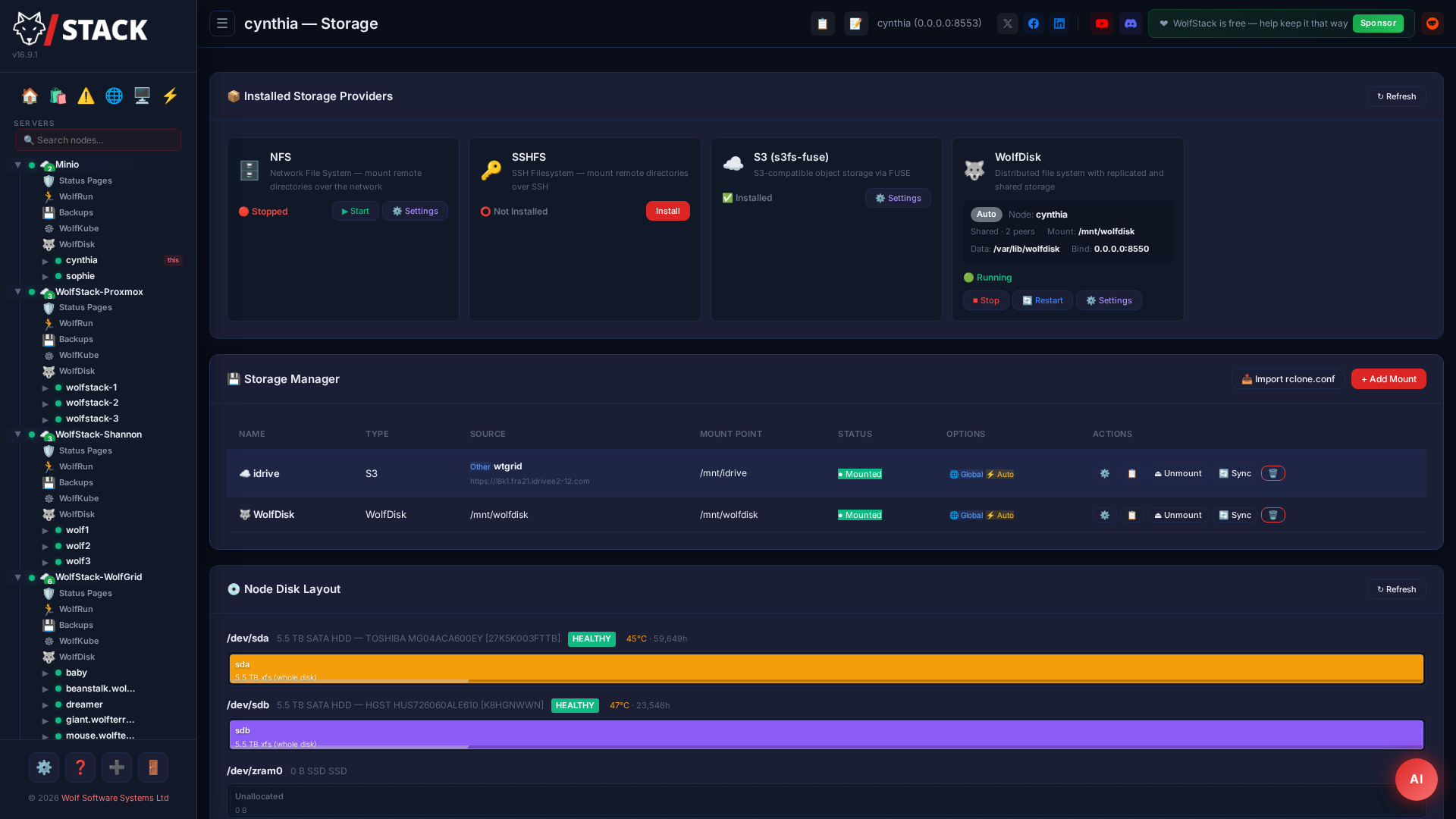
WolfStack’s Storage Manager lets you mount and manage remote storage directly from the dashboard.
Supported Storage Types
| Type | Description | Use Case |
|---|---|---|
| S3/R2 Object Storage | Mount buckets from AWS S3, Cloudflare R2, MinIO, Wasabi, Backblaze B2, or any S3-compatible provider. Pure Rust implementation — works on all architectures including IBM Power (ppc64le). | Cloud backups, media storage, offsite archives |
| NFS Shares | Mount NFS exports from your network | Shared storage between servers, NAS access |
| SMB/CIFS Shares | Mount Windows, Samba, Synology, and QNAP shares. Supports guest and username/password/domain auth. Defaults to SMB 3.0 which matches modern NAS defaults; smb_options lets you override to vers=2.1 for older boxes. |
Synology/QNAP NAS, Windows file servers, Samba shares |
| SSHFS | Mount remote directories over SSH using SFTP | Secure remote file access without NFS |
| Directory | Bind-mount a local directory to another path | Path aliasing, container storage paths |
| WolfDisk | Mount a WolfDisk distributed filesystem drive | Replicated shared storage across your cluster |
Mounting network storage — step by step
- In the sidebar, open the node that should hold the mount and choose Storage.
- Click Add Mount and pick the type — NFS, SMB/CIFS, SSHFS, S3 or WolfDisk.
- Fill in the connection details: the server address and export/share path, plus a username and password for SMB, or a bucket, endpoint and keys for S3. Use the Test button to confirm WolfStack can reach it before you commit.
- Set the mount point (where it appears on the host, e.g.
/mnt/media) and tick Mount at boot if it should persist. - Click Save. The share mounts immediately and shows its free/used space in the storage list; containers and VMs on that node can now bind-mount the path.
To watch physical disk health rather than mounts, see Drive Health & SMART; to build a redundant array from local disks, see Storage Array.
Saved S3 remotes & endpoint health New in v25.15
An S3 remote is a saved set of credentials for one S3-compatible account — save it once and reuse it for mounts, bucket management, and sync jobs without re-typing keys. The S3 Remotes card on the Storage page lists every saved remote with its live health state.
- Open the node’s Storage page, click Add Mount and pick S3.
- Choose your provider from the preset list — Amazon S3, Cloudflare R2, DigitalOcean Spaces, Wasabi, Backblaze B2, IDrive e2, Hetzner, Scaleway, MinIO, Garage, or any other S3-compatible endpoint. The preset fills in the endpoint format and region conventions for you.
- Enter the access key and secret, then click Test. The test tells you specifically whether the endpoint is unreachable, the credentials are rejected, or everything works — and it copes with key-per-bucket accounts that aren’t allowed to list buckets.
- Tick Save these credentials for reuse on other buckets so they are stored as a remote. You can also bulk-import remotes from an existing
rclone.conf.
Every saved remote is health-checked about every five minutes. Three consecutive failures raise an alert through WolfStack’s normal alerting channels, and recovery clears it — so a provider outage tells you before your backups quietly stop landing. Use Disable checks on a remote you only use occasionally. From the card you can also Test a remote on demand, Edit its endpoint or keys (leaving the key fields blank keeps the stored values — WolfStack never shows secrets back), and open its Buckets. A remote that an enabled sync job depends on cannot be deleted until the job is removed.
Creating and deleting buckets New in v25.15
- On the S3 Remotes card, click Buckets next to a remote.
- The modal lists the remote’s buckets. Type a name and click Create — names are validated against the S3 naming rules (3–63 characters, lowercase letters, digits, dots and hyphens) before anything is sent.
- Delete removes a bucket only if it is empty — WolfStack refuses to delete a bucket that still contains objects.
Bucket sync jobs New in v25.15
A sync job keeps a bucket on one remote mirrored to a bucket on another, powered by rclone — local server to cloud, cloud to cloud, or cloud to local. Jobs reference saved remotes by name, so credentials live in one place and are handed to rclone per pass, never written into the job or onto disk.
- On the Bucket Sync card, click + Add Sync Job.
- Pick the source and destination remote and bucket (optionally a prefix within each bucket).
- Choose the mode: Copy adds new objects and never deletes — the safe default for backups, since deletions and corruption can never propagate. Sync mirrors exactly, deleting destination objects that vanish from the source — WolfStack asks you to confirm before saving a sync-mode job.
- Choose the schedule: Continuous starts the next pass a set gap after the previous one finishes (a pass that grows to hours can never pile up), Cron runs on an expression (a pass still running when the next match fires is skipped, not doubled), or Manual only.
- Leave the change window on Auto: each pass only considers objects newer than the window (4× the last pass length, at least 24 hours), which keeps incremental passes fast on large buckets while staying safely wider than a pass. The first pass — and every pass in sync mode — is always full.
- Optionally tune parallel transfers/checkers or set a bandwidth limit, then Save.
The card shows each job’s live state, last pass (objects moved, bytes, window used) and last success time. Run now starts a pass immediately, Pause stops scheduling without deleting the job, and Log opens the full rclone output of recent passes. A job that hasn’t succeeded for three times its cadence raises an alert — a silently stuck mirror is treated as an outage, not a footnote.
Running your own S3 server New in v25.15
The Storage Providers card can install and supervise self-hosted S3 servers alongside the mount helpers:
- Garage — one-click native install. WolfStack downloads the official binary, writes a single-node configuration, creates the systemd service, initialises the cluster layout, and creates your first access key — ready to save as an S3 remote when it finishes.
- MinIO — installed through the App Store as a container (upstream no longer publishes maintained community server binaries, so the container is the supported route).
- rclone — the engine behind bucket sync; installed from your distribution’s packages with one click if a sync job needs it.
Once running, either server appears on the providers card with start/stop/restart controls, and pairs naturally with a sync job — for example, mirroring a cloud bucket into a local Garage instance for an on-premises copy of your data.
Features
- View storage usage and capacity at a glance
- Browse files in mounted storage via the File Manager
- Configure credentials and mount points from the web UI
- Auto-mount on boot
- Prompt-and-install for missing helper packages — if a host is missing
cifs-utilsornfs-common, WolfStack pops a confirm dialog and runs the install in a live terminal window so you see what's happening. Nothing installs silently. - S3 sync operations for syncing local directories with S3 buckets
- Import storage configurations from
rclone.conf - Replicate storage mount configurations across all cluster nodes
NAS Quick Reference
Both NFS and SMB can point at consumer NAS boxes — pick whichever your NAS has enabled.
Synology / QNAP over SMB
Most out-of-the-box NAS setups have SMB on by default. Create a share in the NAS admin UI, then in WolfStack pick SMB/CIFS as the mount type:
- Source:
//nas.local/wolfstack(or\\nas.local\wolfstack— we normalise either form) - Username / Password / Domain: from your NAS share permissions, or leave blank for a guest-mounted share
- Options: leave empty for the SMB 3.0 default; on older NAS firmware, set
vers=2.1
Synology / QNAP over NFS
If you've enabled NFS in the NAS control panel:
- Source:
nas.local:/volume1/wolfstack - Options: leave empty for the defaults (
rw,soft,timeo=50)
Making fstab Mounts Wait for WolfStack New in v24.37
Mounts created here are managed by WolfStack itself, so systemd has no .mount units to order against. If something in your /etc/fstab depends on them — the classic case is a mergerfs pool over WolfStack-mounted CIFS/NFS branches — order it on the wolfstack-mounts.target unit that WolfStack activates once every auto-mount has been attempted at boot:
/mnt/branch1:/mnt/branch2 /mnt/pool fuse.mergerfs defaults,nofail,_netdev,x-systemd.requires=wolfstack-mounts.target 0 0nofail is required, not optional — without it systemd hits a boot-ordering cycle and drops the mount from the boot transaction. With it, your pool waits for the branches on every boot, no helper scripts needed.
Nested mounts: parents first, never over a live child
A mount point inside another mount (say /mnt/nas and /mnt/nas/backups as two separate entries) is fine, but the order matters. If the child lands first and the parent is then mounted over it, the child is hidden: the path still exists, but it now resolves to a plain directory of the same name on the parent's filesystem — a different directory that nothing on the page distinguishes from the one you meant. On a backup destination that means archives silently land in, and restores silently read from, the wrong place.
- Boot order is by depth. Auto-mounts are brought up one level at a time, shallowest first, so a parent is always mounted before anything inside it. Entries at the same depth still mount in parallel.
- Mounting over an active mount is refused. If anything is already mounted beneath the mount point — a WolfStack entry or a mount from anywhere else — the mount fails with an error naming what it would hide. Unmount those first, mount the parent, then mount them again inside it.
Physical drive health
Alongside the mounts and the disk layout, this page carries the drive-health card for the node’s physical disks — SMART status, a Lifespan graph placing each drive on the 0–6 year failure curve, and scheduled SMART self-tests paced by drive age.
Monitoring is standby-aware: routine polls never spin a sleeping disk back up, and a disk that cannot be read for seven days raises a warning rather than being reported as healthy. Read the full drive-health documentation →
Got a NAS Appliance? See It Here Too
Beyond mounting shares, WolfStack can show your NAS's own health next to your servers:
- TrueNAS integration — ZFS pool health, datasets, disks, NFS exports, and snapshot create/delete.
- Unraid integration — array and disk health, user shares, parity status and history, plus Docker/VM lists. New in v24.38.
Try this on your own servers
WolfStack is free for personal use and installs in about two minutes — one command, no agents, works on any Linux server or Raspberry Pi.
Running it at work? Commercial licences start small and fund development.